Roblox Map Design Basics: Terrain, Lighting and Parts That Make Games Look Good
Two maps built from the same parts can look amateur or professional — the difference is terrain shaping, lighting settings and colour discipline. This guide covers the exact tools and settings that decide how your Roblox map looks.

In this guide
Terrain — The Shape of Your World Generate: a starting landscape in one click Sculpt: the tools you will actually use Paint: materials are your colours Water Lighting — Settings That Transform a Map The objects you add inside Lighting Parts, Materials and Colour Discipline Materials do the heavy lifting Colour palette discipline Small building habits that look professional Performance: Pretty Must Run on Phones Common Mistakes Frequently Asked Questions Which Lighting Technology should I choose — Future or ShadowMap? My terrain looks lumpy and ugly. What am I doing wrong? How many parts is too many for a Roblox map?Players decide whether your game "looks good" in the first five seconds, and that decision has surprisingly little to do with how many parts you placed. It comes from three things — the shape of your ground, your lighting settings, and your colour choices. This guide walks through each one using the real tools in Roblox Studio: the Terrain Editor, the Lighting service, and the materials on ordinary parts. No plugins, no free models, no scripting required.
Terrain — The Shape of Your World
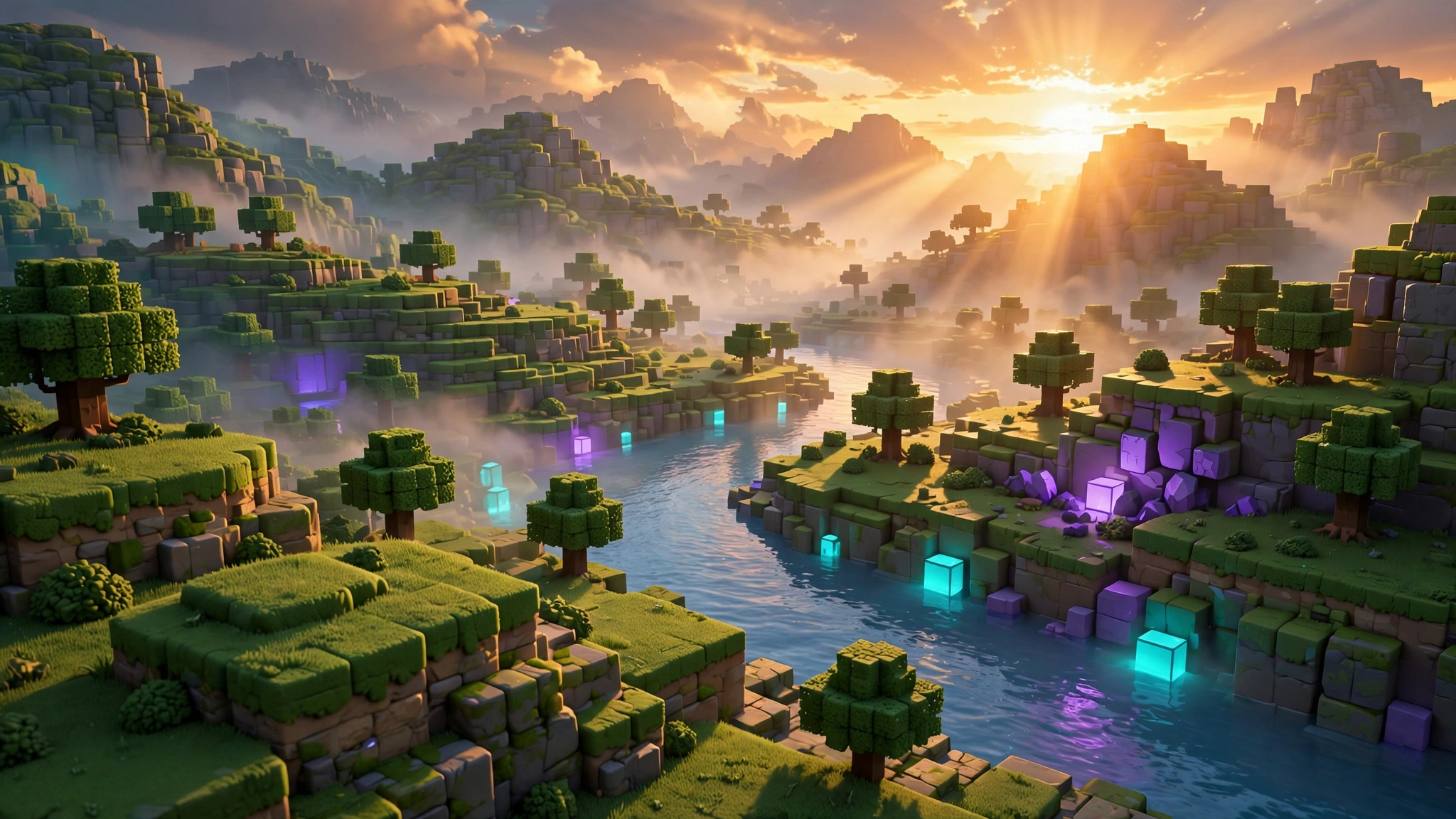
Terrain is Roblox's built-in ground system: instead of building hills from hundreds of blocks, you sculpt land like clay. Open the Terrain Editor from the Home tab. The tabs that matter are Create and Edit, plus sea level under Create.
Generate: a starting landscape in one click
The Generate tool builds a whole landscape from settings: map size, materials, and features like mountains, canyons, dunes and glaciers. Generated terrain is a starting point, not a finished map — it looks random because it is random. Generate something roughly right, then sculpt by hand only where gameplay happens. The classic error is generating the largest possible terrain and trying to "finish" all of it; players only care about ground they can reach.
Sculpt: the tools you will actually use
- Add — raises mounds of the selected material. For hills and raised banks.
- Subtract — carves material away: caves, trenches, riverbeds, the hole a lake sits in.
- Grow — inflates terrain outward, swelling a hill smoothly.
- Smooth — softens jagged edges. After Add/Subtract work, a light Smooth pass is the difference between "natural hill" and "pile of gravel".
- Flatten — levels terrain to a flat height. Essential under buildings, spawns and shops, so structures sit without floating corners or buried walls. Trick: flatten to the height of a point you click — click the ground beside your building, then paint.
- Erode — wears terrain down; softens cliffs, easy to overdo.
Every sculpt tool has Brush Size and Brush Strength. Work big-to-small: large brush, low strength for the overall shape, smaller brush for detail near paths and buildings. Then press Play and walk the ground. Terrain that looks fine from a flying camera can feel like an exhausting staircase at player height — a slope the character slides on or cannot climb is a design bug, not a style choice. Make climbable slopes gentler, or cut a path into them.
Paint: materials are your colours
The Paint tool changes terrain material without changing its shape. Materials include Grass, Sand, Rock, Snow, Mud, Ground, Basalt and Cracked Lava. Painting gives a map believable detail: sand where land meets water, rock on steep cliffs, grass on flat play areas — and a dirt-coloured trail along the route players should follow. That last one is real design: a visible path silently teaches players where to go, no signs or arrows needed.
Water
Water is added with the same Add/Paint workflow using the Water material; its height when generating is set by the sea level option. Water's own properties — WaterColor, WaterTransparency, WaterReflectance — live on the Terrain object (select Workspace > Terrain, look in Properties). To make a lake: carve the basin with Subtract, flatten the bottom, then add water up to the rim. Always test swimming and getting out — a lake with steep smooth walls is a trap. Leave one shallow sloped edge as the beach.
Lighting — Settings That Transform a Map
Select Lighting in the Explorer. Its Properties are your biggest "graphics upgrade", at zero building effort:
| Setting | What it controls | Beginner guidance |
|---|---|---|
| Technology | Rendering mode (Compatibility, Voxel, ShadowMap, Future) | Future = most realistic light and shadow; ShadowMap is lighter. Test on a phone profile first. |
| ClockTime | Time of day, 0–24 | 14 = bright daytime; ~18.5 = golden sunset; 0 = midnight. This one number sets the mood. |
| GlobalShadows | Sun shadows on/off | Leave on unless performance suffers — shadows give instant depth. |
| Ambient / OutdoorAmbient | Colour of indoor/shadow light vs outdoor light | Blue-grey ambient feels natural; bright white makes everything flat. |
| EnvironmentDiffuseScale / EnvironmentSpecularScale | How much sky light and reflections affect parts | Specular adds sheen on metal/glass; keep moderate (0.5–1) to avoid a "wet plastic" look. |
The objects you add inside Lighting
Hover over Lighting in the Explorer, click +, and insert effect objects. These do most of the work:
- Atmosphere — haze and aerial perspective. Properties: Density (start around 0.3), Offset, Color (haze near the horizon), Decay (colour further away), Glare and Haze. Atmosphere is the difference between a map that ends abruptly at the horizon and one that fades into distance. Almost every good-looking outdoor map uses it.
- Sky — the skybox. Leave the default or supply your own images; it also controls StarCount and whether sun/moon show (CelestialBodiesShown). A custom sky must match your ClockTime — stars with a noon sun looks broken.
- SunRaysEffect — glow around the sun. Low Intensity (0.05–0.15) only; high values wash the screen white.
- BloomEffect — makes bright things glow (neon, lava, lights). Threshold decides what counts as bright: around 1, mostly Neon blooms — usually exactly what you want. Lower it and the whole world glows like a dream sequence.
- ColorCorrectionEffect — overall grading: Brightness, Contrast, Saturation, TintColor. Small moves only: contrast +0.05, saturation +0.1. Seasoning, not the meal.
A starter recipe for a pleasant daytime map: Technology = Future, ClockTime = 14.5, GlobalShadows on, Atmosphere Density 0.3 with a soft blue-white Color, Bloom threshold 1, and gentle ColorCorrection (+0.05 contrast, +0.08 saturation). Then walk around in Play mode and adjust one setting at a time — changing ten sliders at once teaches you nothing about which one helped.
Parts, Materials and Colour Discipline
Materials do the heavy lifting
A grey Plastic block looks like a toy; the same block in WoodPlanks, Brick, Concrete, Marble, Metal or Slate looks like a building material. Set Material in Properties, make a small rulebook, and stick to it across the whole map: floors one material, walls another, trims a third. Glass (plus Transparency around 0.3–0.6) makes windows; Neon is for signs, lava and lights — accents, not entire buildings.
Colour palette discipline
Amateur maps use every colour in the picker. Good maps use a palette: 2–3 main colours plus 1 accent, picked before building. Choose the mood first (bright cartoon, desert, snowy, dark forest), match ground and building colours to it, and reserve the loudest colour for the most important thing — the shop, the goal, the danger. Keep the same palette in your icon and thumbnails later; players should recognise your game from a screenshot.
Also design for readability: interactive things (buttons, pads, doors) should look different from decoration, and signs should contrast with what is behind them. A beautiful map players cannot read is a failed map.
Small building habits that look professional
- Align things. Use Move's snap (the stud increment in the Home/Model tab) instead of eyeballing freehand; crooked walls read as "rushed".
- Vary the shapes. Mix wedges, cylinders and different heights into the cubes so silhouettes stay interesting — especially roofs and cliffs.
- Density beats size. A small plaza with benches, lamps and signs looks richer than a giant empty field. Build small areas completely, not huge areas roughly.
- Light sources should be visible. If an area glows at night, put a lamp, torch or window there. Unexplained floating light confuses the eye.
Performance: Pretty Must Run on Phones
Most Roblox players are on modest phones; a map they cannot run is a map they leave in the first minute:
- Count your parts. Tens of thousands of parts strain weak devices. Merge what you can — one big part instead of 50 tiny ones for a wall — and avoid huge counts of tiny decorations.
- Turn on Streaming. Select Workspace and enable StreamingEnabled. Streaming loads only the area near each player (StreamingMinRadius / StreamingTargetRadius), which massively helps big maps on phones. Test with it on; very fast movement can briefly outrun it.
- Switch off what decoration does not need. For decorative parts, turning off CanCollide, CanTouch and CanQuery reduces physics work — and stops players standing on your ornaments.
- Mind shadows and effects on low-end. Future lighting plus dense shadows is heavy. Test with graphics lowered to see what your weakest players get.
- Unions and meshes cost too. A handful is fine; hundreds of complex unions can be worse than the parts they replaced.
Common Mistakes
- The noon-flat look: default lighting, no Atmosphere, white ambient — plastic toys under a dentist's lamp. Fifteen minutes in Lighting fixes it.
- Rainbow maps: every building a different bright colour. Repaint ruthlessly.
- Terrain as an afterthought: buildings floating above ground, or sunk into it. Flatten under every structure.
- Bloom and SunRays on maximum: if looking at the sun blinds the player, your effect is a weapon, not a feature.
- Building for the Studio camera: it looks great from the air, but players see it from 1.7 metres up. Judge your map in Play mode, at player height.
Frequently Asked Questions
Which Lighting Technology should I choose — Future or ShadowMap?
Future looks best — realistic light, better reflections, prettier interiors — and modern devices handle it well. ShadowMap is older and lighter, safer if you target very low-end phones or use many point lights. Decide by testing: build a typical area and playtest on the lowest device profile you care about. Smooth in Future? Stay in Future.
My terrain looks lumpy and ugly. What am I doing wrong?
Usually two things: brush strength too high (each click raises a hard lump, not a gentle rise) and no finishing pass. Lower Strength, use a larger brush for broad shapes, go over everything with Smooth, then paint a single material so the eye reads one surface. Real hills are boringly smooth from a distance — save detail for near paths and buildings.
How many parts is too many for a Roblox map?
No single magic number — a part with physics and scripts costs more than a static anchored block — but start worrying in the tens of thousands of parts, especially unanchored or colliding ones. The practical test matters more: enable Streaming, playtest on low graphics and a phone profile near your densest area. If it stutters, merge parts, cut decoration density, or reduce collisions — in that order.