How to Use AI in Roblox Studio: Assistant, Planning Mode and MCP Explained
Roblox Studio's Assistant can now plan a feature, build it, and test it — and outside AI tools can work inside your place through MCP. Here is how each AI tool works, how to turn it on, and where you still need to check its work.


In this guide
The Four Ways to Use AI in Roblox Studio 1. Roblox Assistant: The Built-In Helper 2. Planning Mode: Think Before It Builds 3. The Studio MCP Server: Bring Your Own AI 4. Prompt to Animation and the Playtesting Agent A Practical Workflow for Your First AI-Built Feature What AI in Studio Still Cannot Do Well Frequently Asked Questions Is Roblox Assistant free? Does AI replace learning Luau? Can I use Claude or Cursor with Roblox Studio? What is Planning Mode? Can AI generate animations in Roblox Studio? Is my place safe when an AI agent is connected? Related Guides on RBXMods SourcesIn April 2026, Roblox said Studio was "going agentic": its Assistant would stop being a single-prompt helper and start planning, building and testing like a development partner. By November 2026 that shift has arrived: Planning Mode, a built-in MCP server, a Playtesting Agent, and (from November 6) R15 animations from a text prompt. This guide explains each tool, how to turn it on, and when to use which one.
Key takeaways
- Roblox Assistant is built into Studio and can write scripts, build objects, generate meshes, materials and textures, and create procedural models — no setup needed.
- Planning Mode (/plan) makes Assistant write an editable plan first — use it for anything bigger than a one-line change.
- The built-in MCP server connects Claude Code, Cursor, Codex and other AI clients to your open place with one toggle (Quick Connect).
- Prompt to Animation (Studio Beta, November 6, 2026) creates R15 animations from text — free during beta, four generations a minute, no daily cap.
- AI output always needs checking: verify generated code and never let an agent work on your only copy.
The Four Ways to Use AI in Roblox Studio
The right route depends on the job: Assistant for quick work, Planning Mode when Assistant should think first, the MCP server when an outside AI client should work in your place, and the Playtesting Agent to test what was built.
| Route | What it does | Best for |
|---|---|---|
| Assistant (built in) | Writes scripts, builds objects, generates meshes and models | Quick changes and first drafts |
| Planning Mode (/plan) | Writes an editable plan before building anything, with checkpoints you can revert to | Whole features |
| MCP server + your AI client | An outside agent reads, edits and playtests your open place | Long sessions and big refactors |
| Playtesting Agent (Beta) | Plays your game and reports what it finds | Checking a feature in play |
Roblox's own numbers show how fast creators adopted these tools: 44% of the top 1,000 creators used Assistant or third-party AI tools via MCP in the 30 days before the April 2026 announcement, and AI users in a survey of 50 creators reported saving about 30% of their production time.
1. Roblox Assistant: The Built-In Helper
Assistant is Roblox's own AI helper, built into Studio. Open it from the right side of the bar along the top of Studio, select the object you mean, and type what you want in plain language — "make this door open when a player touches it", for example. It needs no setup, and Roblox's documentation lists no price for it.
According to Roblox's documentation, Assistant can answer Roblox questions, create and edit scripts and objects in your data model, search and insert Creator Store assets, explain code, and generate materials, textures, meshes, procedural models and images.
It also has slash commands you can type directly:
- /insert_asset — find and insert a Creator Store asset.
- /generate_mesh — generate a 3D mesh from a description, splittable into up to eight named parts.
- /generate_procedural_model — generate a procedural model that rebuilds itself when its parameters change.
- /segment_mesh — split a generated mesh into parts.
- /plan — switch to Planning Mode (see below).
Two limits to know. First, the one numbered cap in the documentation: up to 50 procedural models within a rolling 24 hours. Second, Assistant will refuse some requests — for example, generating scripts that exploit known vulnerabilities — and Roblox asks you to verify generated code rather than trusting it blindly. Assistant writes plausible Luau, and plausible is not the same as correct: read what it produces, test it, and keep the parts you understand. Our Lua scripting beginner's guide covers the basics you need to read its output with confidence.
2. Planning Mode: Think Before It Builds
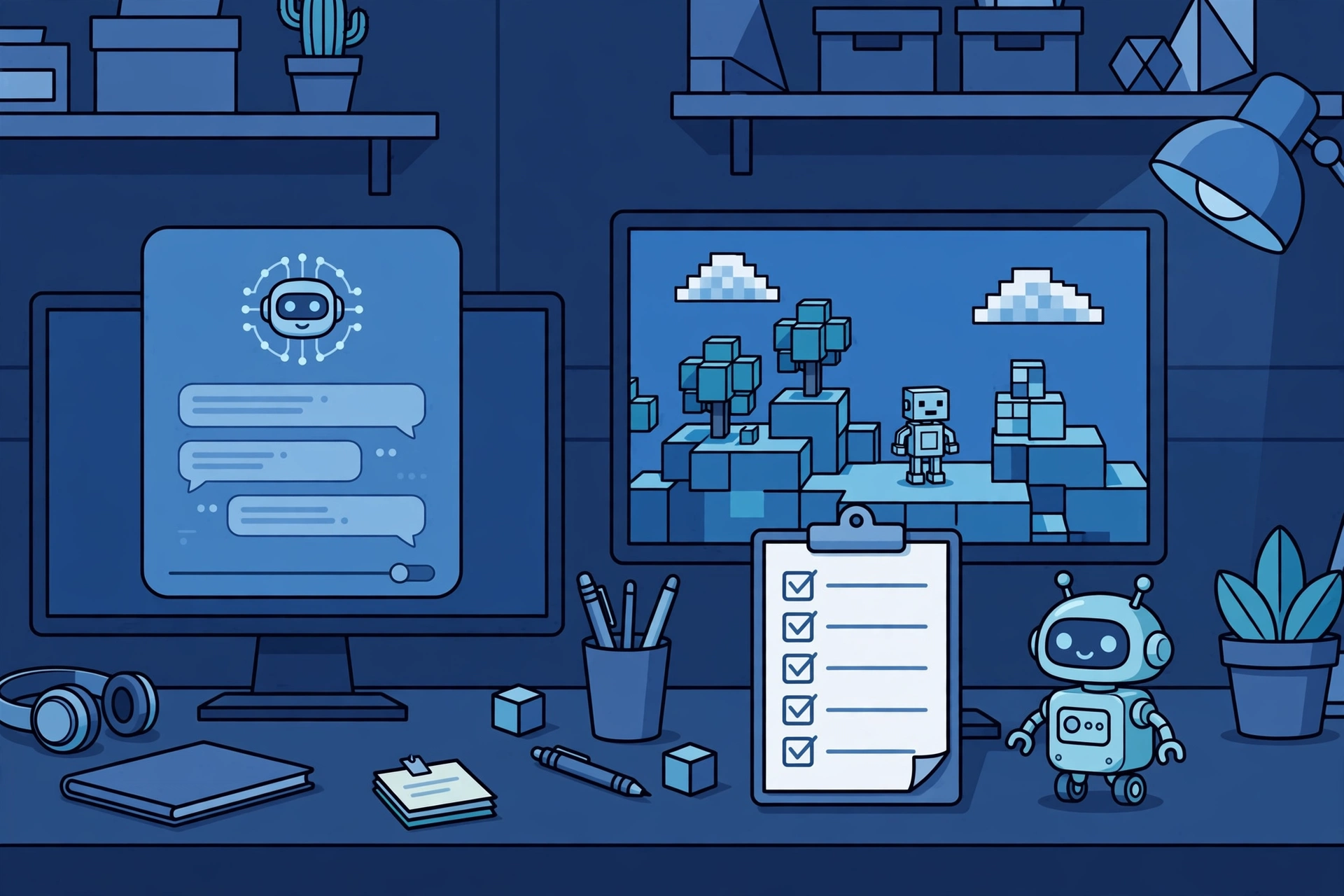
Planning Mode is the single biggest change in how Assistant works. Instead of acting on your prompt immediately, Assistant analyses your code and data model, asks clarifying questions, and produces an editable action plan. You review, modify or reorder the steps before anything changes, and each session creates checkpoints you can revert to.
To turn it on: in Studio, go to File > Beta Features > Assistant Planning Mode. Then, in Assistant, switch the dropdown from Agent to Plan, or type /plan. The plan is a Markdown document you can open and edit, and nothing is built until you click Build. It works across multiple sessions, so you can come back to a half-finished plan the next day.
Use Planning Mode for anything bigger than a one-line change — a shop system, a quest chain, a round system. Use plain Agent mode for the small stuff. The rule of thumb is simple: if you would explain the feature to a teammate before they built it, write the plan first. Roblox announced Planning Mode on April 16, 2026: plan, build, test, with a human approving each step.
3. The Studio MCP Server: Bring Your Own AI
MCP is the route for creators who already have a favourite AI coding tool. Studio's built-in MCP server lets an outside AI client — Claude Code, Claude Desktop, Cursor, Codex, Gemini CLI, VS Code or Antigravity — work directly in the place you have open. The server talks to the client over stdio, not over the network.
Setting it up takes a minute. In Studio, open Assistant, click the … menu, choose Manage MCP Servers, and turn on Enable Studio as MCP server. Then use Quick Connect for a supported client — Antigravity, Codex CLI, Claude Code, Claude Desktop, Cursor, Gemini CLI or Visual Studio Code — or add the JSON config or CLI command from Roblox's guide. The server must be enabled before the client connects, and only one agent can connect at a time.
Once connected, the client can use tools to run Luau, read and write the data model, inspect instances, generate meshes and animations, insert assets, and search the Marketplace. In practice, an outside agent can read your code, change it, run it, playtest it and look at the result — the full loop, without copy and paste.
That power comes with a warning Roblox states plainly: an MCP client can read and modify your open places, so only connect clients you trust, and work on a copy of your place — or use version history — while an agent works. An agent that misunderstands "delete the old coins" can delete the wrong thing, and undo does not always save you. Duplicate your place, let the agent work on the copy, and merge the good parts back by hand. If you would rather skip the setup, Assistant covers most of the same ground. If you make games by typing a prompt on your phone instead, our Roblox Build guide covers that route.
4. Prompt to Animation and the Playtesting Agent
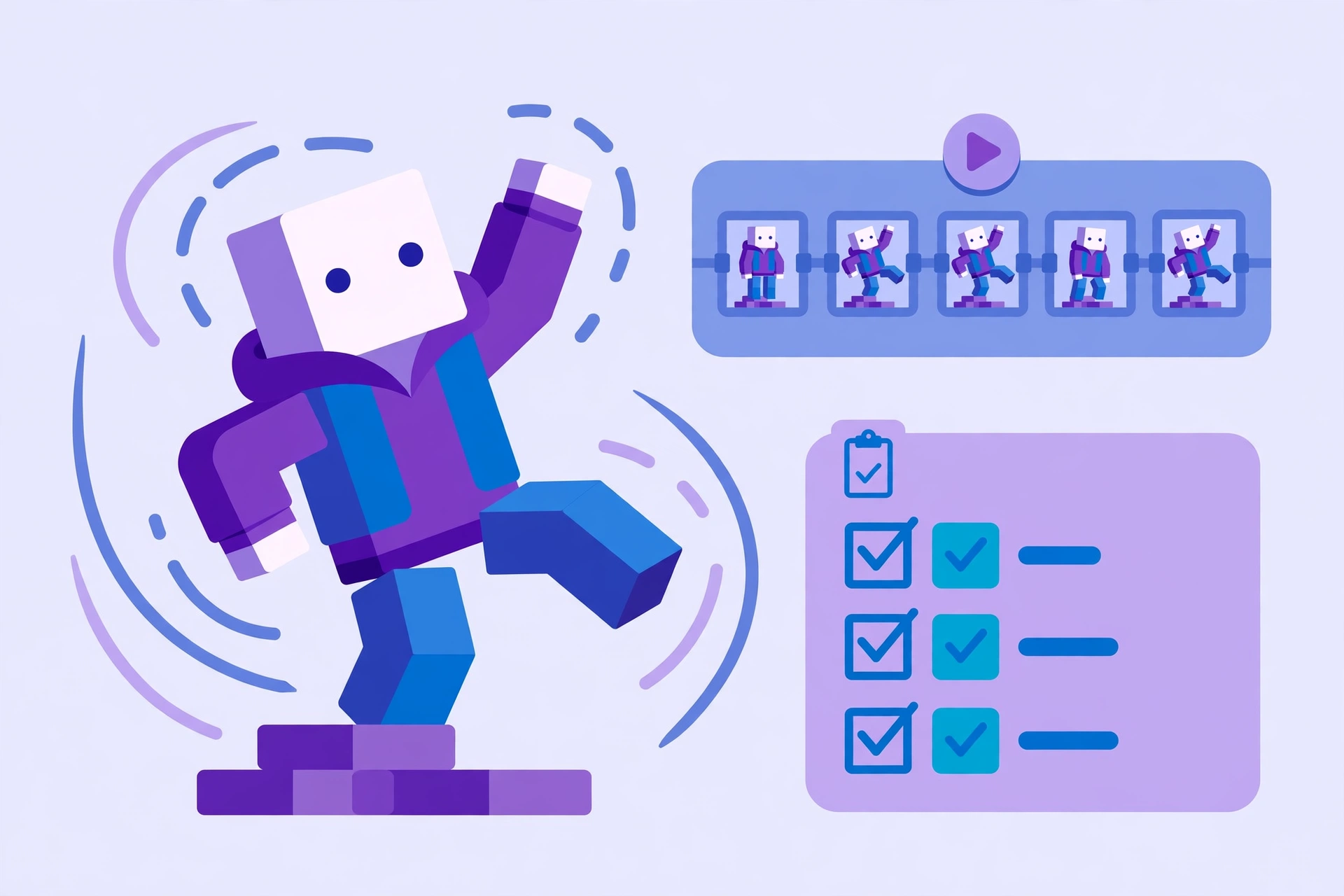
The newest tool arrived in November 2026. On November 6, Roblox opened Prompt to Animation in Studio Beta: type a description and Assistant generates an R15 character animation from it, using /generate_animation or "Create a new animation". Enable it under File > Beta Features > Animation Generation in Assistant. Results can be edited in Assistant, opened in the Clip Editor, or saved to Roblox.
The same announcement added an optional R6 Motion Rebuilder, which converts R6 keyframes to R15 with adjustable blends in under 10 seconds. Useful if you have old R6 animations to move to the modern rig.
The limits are worth knowing before you plan around it. Prompt to Animation works on humanoid characters only, with no face or finger motion yet, and it will not always respect hand and foot placement — so a dance or a wave may need a pass in the Clip Editor. It is free during beta, with a limit of four generations a minute and no daily cap. If your game needs precise, characterful movement, treat this as a starting point, not a finished animation: a generated idle that you fix by hand is still faster than keyframing from zero.
Finally, the Playtesting Agent (Beta) closes the loop Planning Mode opens. It plays through your game against the original plan, reads logs, captures screenshots, and feeds bugs back for automatic fixes. Use it after Assistant builds a feature, not before — it tests what exists, and it is at its best with a plan to check the game against. If it finds something broken, fix it in Planning Mode and let it test again.
A Practical Workflow for Your First AI-Built Feature
Here is the workflow for your first real feature — a coin-collect system in the game from our first-game guide:
- Plan it. Open Planning Mode and type what you want in one paragraph: "a coin that spins, gives 10 coins when a player touches it, updates a Coins value on the leaderboard, and respawns after 5 seconds." Read the plan, fix anything it misunderstood, and click Build.
- Read the code. Open the script Assistant wrote. Check that the coin-giving code is in a server Script (not a LocalScript), that it uses a debounce so one touch cannot pay out ten times, and that the Coins value lives in a leaderstats folder.
- Playtest it. Run the game, touch the coin, and watch the Output window for errors. Then let the Playtesting Agent run through it and report what it finds.
- Fix and keep. Fix what the test found in Planning Mode, so the fix is part of the plan, and save a version. Your place's version history is your safety net — use it before every big AI change.
That loop — plan, read, test, fix — is the whole skill. The AI does the typing; you do the thinking. Skip the reading step and you end up with a game you cannot fix when the AI is not there; skip the testing step and you get features that work in the plan and break in play.
What AI in Studio Still Cannot Do Well
AI in Studio is powerful, but it has edges. It cannot replace your judgement — generated code can be wrong in ways that look right, and Roblox itself asks you to verify it, so if you do not understand a script, do not ship it. It cannot know your game: it reads your data model, not your design intent or what "fun" means for your players, so the plan is only as good as the prompt you wrote. It has hard caps (50 procedural models per rolling 24 hours, four animation generations a minute, one MCP agent at a time), it will not generate scripts that exploit vulnerabilities, and the beta tools — Planning Mode, the Playtesting Agent, Prompt to Animation — can change menus and limits without warning, so check the documentation if a menu name does not match what you see.
Used with those limits in mind, AI in Studio is the fastest way a beginner has ever had to go from an idea to a working feature. Start with one small feature and run the loop once.
Frequently Asked Questions
Is Roblox Assistant free?
Roblox's documentation lists no price for Assistant, and Prompt to Animation is free during its beta. The only numbered cap the docs state is 50 procedural models per rolling 24 hours. Outside AI clients connected through MCP have their own plans and limits.
Does AI replace learning Luau?
No. AI writes Luau for you, but you still need to read it, test it and fix it when it is wrong. Knowing the basics — variables, functions, events, and the client-server boundary — is what lets you check AI output instead of trusting it blindly. Start with our Lua beginner's guide and our RemoteEvents guide.
Can I use Claude or Cursor with Roblox Studio?
Yes, through the built-in MCP server. Enable it in Assistant under … > Manage MCP Servers, then use Quick Connect for Claude Code, Claude Desktop, Cursor, Codex, Gemini CLI, VS Code or Antigravity. Only connect clients you trust, and work on a copy of your place.
What is Planning Mode?
Planning Mode (/plan) makes Assistant write an editable action plan before building anything. You review and edit the plan, then click Build. Enable it under File > Beta Features > Assistant Planning Mode. It is the right choice for whole features, not one-line changes.
Can AI generate animations in Roblox Studio?
Yes, since November 6, 2026: Prompt to Animation generates R15 character animations from a text prompt, free during beta, four generations a minute. Humanoid characters only, no face or finger motion yet, and hand and foot placement is not always respected — expect to polish the result in the Clip Editor.
Is my place safe when an AI agent is connected?
Only as safe as your habits. An MCP client can read and modify your open place, so connect only clients you trust, work on a copy, and keep version history on. Never let an agent work on your only copy of a place you care about.
Related Guides on RBXMods
- Roblox Build explained — make a game by typing a prompt, without opening Studio at all.
- How to make a game in Roblox — from first idea to a playable game, the feature this guide's workflow builds on.
- Roblox Studio beginner roadmap — the full Studio tour, before you add AI to it.
- Lua scripting for beginners — the basics you need to read and check AI-written code.
- RemoteEvents and RemoteFunctions explained — the client-server communication AI-written multiplayer code depends on.
RBXMods is not affiliated with or endorsed by Roblox Corporation. Roblox and the Roblox logo are trademarks of Roblox Corporation.
Sources
- Roblox Creator Documentation: Assistant for Studio — what Assistant can do, its slash commands, Planning Mode, and the 50-procedural-models-per-day limit.
- Roblox Creator Documentation: Connect to the Roblox Studio MCP server — enabling the server, Quick Connect clients, the tools it exposes, and the one-agent-at-a-time rule.
- Roblox Newsroom: Roblox Studio is Going Agentic — the April 15, 2026 announcement by Nick Tornow: 44% of the top 1,000 creators using AI tools, about 30% production time saved, Planning Mode, the Playtesting Agent beta, and MCP built into Studio.
- Roblox Developer Forum: [Studio Beta] Generate R15 Animations From a Prompt, Plus Optional R6 Motion Rebuilder — the November 6, 2026 announcement by Roblox staff: /generate_animation, the R6 Motion Rebuilder, humanoid-only limits, free during beta, four generations a minute.
- Roblox Developer Forum: Announcing Planning Mode for Roblox Assistant — the April 16, 2026 announcement: the plan-first workflow, editable plans, and checkpoints.