How to Make Your First Obby Game in Roblox Studio (Step by Step)
An obby is the perfect first Roblox game: simple parts, clear rules, and a real finish line. Here is the complete step-by-step build, from an empty baseplate to a published game your friends can play.

In this guide
Step 1: Start From the Baseplate Template Step 2: Build Your Stages Out of Parts Step 3: Kill Bricks, Lava Make the lava (looks first) Add the kill script Step 4: Checkpoints, Simply The simple built-in way: SpawnLocations and Teams The scripted way (how modern obbies do it) Step 5: Moving Platforms (Overview) Step 6: The Finish / Win Pad Step 7: Test With Friends First Step 8: Publishing Your Obby Common Mistakes in First Obbies Frequently Asked Questions How many stages should my first obby have? Why do players fall through my platforms when the game starts? My kill brick script is not working. What should I check?An obby (obstacle course) is the best first game a new Roblox creator can make. Every player understands the rules instantly — jump across the stages, avoid the lava, reach the end — and building one teaches you almost every basic Studio skill: parts, properties, spawn points, scripts, testing and publishing. By the end of this guide you will have a working obby with checkpoints and a finish pad, live on Roblox for your friends to play.
Step 1: Start From the Baseplate Template
Open Roblox Studio and choose the Baseplate template from the New tab. You get a flat plate, a SpawnLocation (the grey pad your character lands on), a sky and basic lighting — all an obby needs as a foundation.
Before building, click the SpawnLocation in the Explorer (in Workspace) and check its Properties: Anchored on, and Neutral ticked — Neutral means any player can use it, which is what a course like this wants. Delete nothing else; beginners often delete the spawn by accident and then wonder why they fall from the sky when testing. Press Ctrl+S now and save the file as something like MyFirstObby.rbxl, and keep saving every few minutes.
Step 2: Build Your Stages Out of Parts
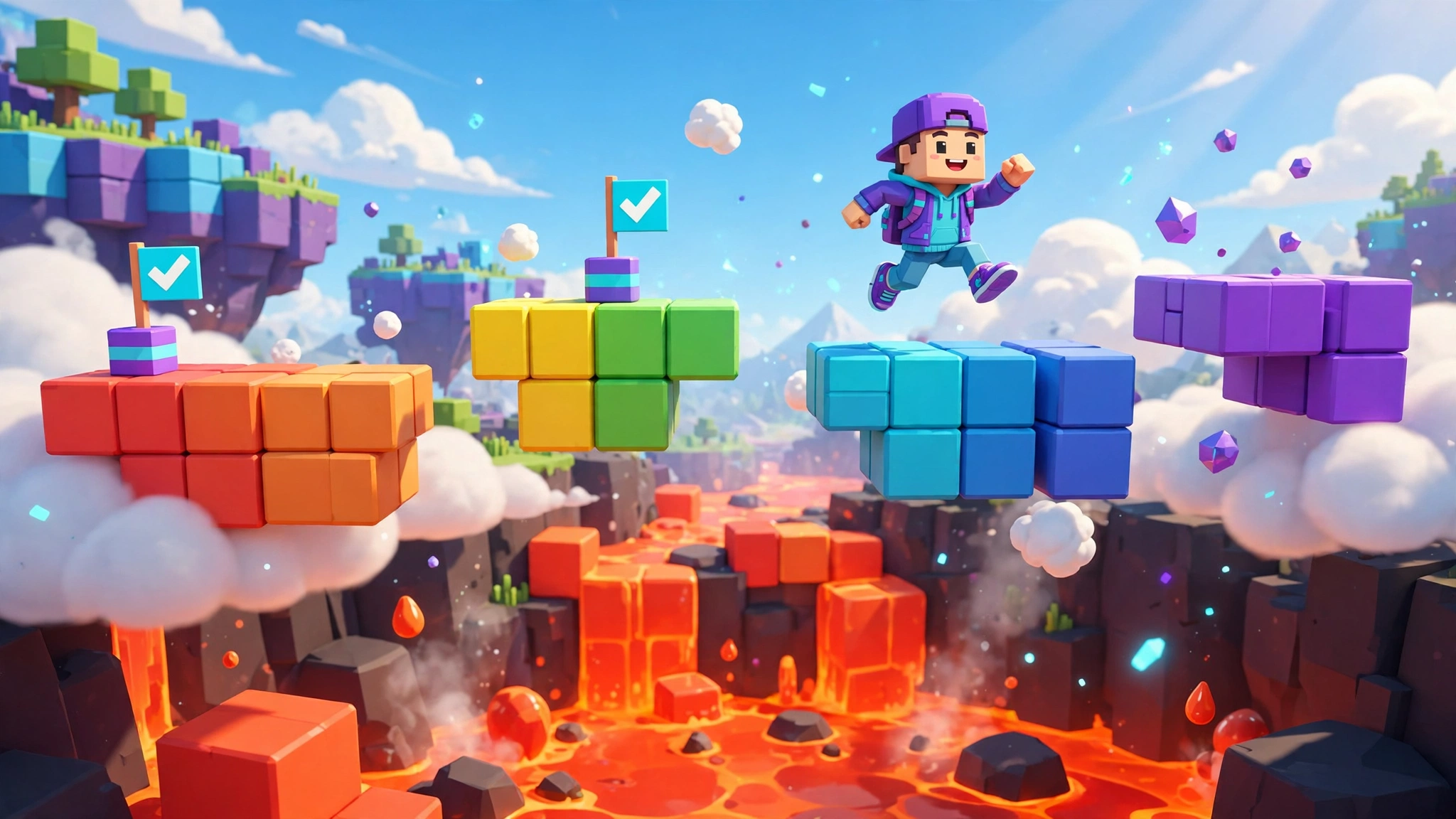
An obby is just a chain of platforms. Build stage 1 close to the spawn, and make the first three jumps nearly impossible to fail — a player who dies in the first ten seconds usually leaves and never comes back.
To make a platform:
- On the Home tab, click Part.
- Use Move to position it and Scale to size it. A comfortable stage platform is about 8 x 1 x 8 studs (studs are Roblox's unit of size; type exact numbers in the Size and Position fields in Properties).
- Set Anchored = on. Every static obby part must be anchored, or it falls when the game starts.
- Give it a colour, and keep a system: safe platforms in one colour family, so players learn your visual language.
Part shapes are in the Part dropdown: Block, Sphere, Cylinder and Wedge. Wedges make ramps; thin cylinders make balance beams. Build 8–12 stages for your first course, and vary the jumps:
- Simple gaps — a standard character jumps roughly 7 studs horizontally, so keep early gaps at 4–5 studs and hard ones under about 6.5.
- Stairs and towers — each step about 2–3 studs higher than the last; comfortable steps are well below maximum jump height.
- Thin beams — a platform only 1–2 studs wide. Hard because of control, not jump power.
- Corner jumps — platforms turning left or right, so the player must aim mid-air.
Keep the course in roughly one direction so the player always sees the next stage. And crucially: press Play (F5) and complete every stage yourself, several times. If a jump annoys you, it will enrage a stranger. Fix it now.
Step 3: Kill Bricks, Lava
Obbies need danger: a kill brick — a part that kills on touch — and lava below, so a missed jump has a consequence.
Make the lava (looks first)
Add a very large, thin part under your whole course: Material = Neon, colour bright orange or red, Anchored = on, sized to cover the area beneath the stages. Leave the baseplate far underneath as a safety net while testing. For now the lava is only decoration — a normal part does nothing when touched. That changes with one small script.
Add the kill script
Select the lava part. In the Explorer, hover over it, click + and insert a Script. Delete the default line and paste this:
local killPart = script.Parent

local function onTouched(hit)
	local character = hit.Parent
	local humanoid = character:FindFirstChildOfClass("Humanoid")
	if humanoid then
		humanoid.Health = 0
	end
end

killPart.Touched:Connect(onTouched)
In plain language: the script lives inside the part, so script.Parent is the part itself. When something touches it, onTouched checks whether the toucher belongs to a character with a Humanoid (the object holding a player's health) and, if so, sets health to 0. Copy the same script into your stage kill bricks. Test: press Play, walk into the lava — you should die and respawn. If nothing happens, check you inserted a Script, not a LocalScript (kill logic runs on the server), and read the Output window for red errors.
Step 4: Checkpoints, Simply
Without checkpoints, dying on stage 10 sends the player back to the start, and most players quit. There are two ways to do them:
The simple built-in way: SpawnLocations and Teams
The classic system uses more SpawnLocations plus the Teams service:
- Teams is not in the Explorer by default — hover over the game name at the top of the Explorer, click +, add Teams, and insert a Team per stage (Stage 1, Stage 2, …).
- Place a SpawnLocation at the start of each stage. In Properties set Neutral = off, set its TeamColor to match that stage's Team, and tick AllowTeamChangeOnTouch.
- Make stage spawns small, flat and clearly visible. Stepping on one moves the player to that stage's team — and that becomes their respawn point.
This works with zero scripting, which is why classic obbies use it. Weakness: it is really a team system borrowed for checkpoints, so it shows team colours in the player list and gets clumsy on complex courses.
The scripted way (how modern obbies do it)
Bigger obbies keep the player's current stage as a number in a leaderstats value. Each checkpoint pad's Touched script saves the stage number, and on respawn a script teleports the character to that pad. More work — and a great second project once you know basic Lua. For your first obby, Teams is fine: the goal is a finished game.
Step 5: Moving Platforms (Overview)
One moving platform makes an obby feel ten times more alive: a part slides between two points and the player rides it. The standard approach keeps the platform Anchored and moves it with a script using TweenService, sliding it smoothly and carrying standing players along. Other methods exist (physics constraints, manual loops), but learn TweenService first. Start with one slow platform over lava, test you can ride it both ways, then add more — a fast, thin platform is the fastest way to make a player quit.
Step 6: The Finish / Win Pad
Every obby needs a clear ending: a final platform that looks different — a gold pad, an arch, confetti-coloured blocks. The win pad should do something when touched so the win feels real: give it a Touched script (same pattern as the kill brick) that changes its colour or plays a sound placed inside it. Later you can add a winners' podium or a badge — badges are created on the Creator Hub website and awarded in the live game by a script using BadgeService. Version one: clear pad, clear celebration.
Step 7: Test With Friends First
Your own testing is biased: you know every jump. Real players do not. Before announcing the game anywhere:
- Test on a phone-sized screen — Test tab > Devices. Most players are on mobile; if a jump needs keyboard precision, widen the platform.
- Do a full run without stopping, spawn to win pad, dying on purpose after each checkpoint to confirm you respawn at the right stage.
- Invite 2–3 friends: in Game Settings > Permissions, keep the game Private but add their usernames for access. Ask: "Where did you get stuck or annoyed?" Watch what they do, not just what they say.
- Fix the two or three worst pain points. Every obby has them; finding them before release is the difference between growth and a wall of dislikes on day one.
Step 8: Publishing Your Obby
- File > Publish to Roblox As… Give the game a clear, themed name ("Mega Fun Obby" style names are crowded; "Lava Escape Obby" stands out better) and a short description stating how many stages there are.
- Open Home > Game Settings > Basic Info: confirm the name, write a real description, and upload a game icon. Games with the plain default icon get far fewer clicks.
- In Permissions, set the game to Public when ready. Now anyone can join.
- Open Roblox, find the game under your profile's Creations, and play it once on the live servers. Publishing can reveal issues Studio testing hid — especially checkpoint behaviour.
- Share the link, then watch Creator Hub analytics: if most players quit at the same stage, that stage is too hard — fix it.
Common Mistakes in First Obbies
- Stage 1 is already hard. Teach first, then challenge: easy, medium, hard.
- Unanchored stages. Half the course falls into the lava on Play. Select all building parts (Shift-click in the Explorer) and set Anchored together.
- Kill bricks that kill through walls. Touched fires when any body part brushes the brick. Give kill bricks room from the safe path.
- Untested checkpoints. Die on purpose after every one to prove respawns work.
- One colour for everything. If platforms, kill bricks and decorations look similar, players cannot read the course. Red = danger; stage colour = safe.
Frequently Asked Questions
How many stages should my first obby have?
Around 10–25 good stages: enough for a satisfying 10-minute game, few enough to test every jump properly. Once live, add stages in updates — "10 NEW STAGES" in the description beats a giant untested course.
Why do players fall through my platforms when the game starts?
Almost always because the parts are not Anchored: an unanchored part obeys physics, so gravity drops it the moment the game runs. Select the part, open Properties, tick Anchored. (Moving platforms are the exception — they stay anchored too, but are moved by TweenService, as covered above.)
My kill brick script is not working. What should I check?
Three things, in order. First, confirm you added a Script, not a LocalScript — kill logic runs on the server. Second, open the Output window (View tab) and press Play again; red errors name the script and the faulty line. Third, check the script is actually inside the kill part in the Explorer — the code uses script.Parent, so a script sitting in Workspace listens to the wrong object and never sees a touch.