Roblox MCP Open Cloud Access Explained: What AI Can Now Do in Studio
On November 4, 2026, Roblox MCP grew beyond the script editor: your AI client can now call Open Cloud, manage your game and import 3D models — if you switch the right permissions on.


In this guide
What Roblox MCP Open Cloud Access Is How open_cloud_invoke Works The MCP Permissions Tab: Per Person, Per Game What You Can Ask the Same Chat to Do Now Asset Import Workflows: From Blender and Maya Into Your Place The Three New Skills How to Set It Up Safely What Did Not Change Frequently Asked Questions Do I need an Open Cloud API key to use MCP Open Cloud access? Does the built-in Studio Assistant use the same MCP Permissions? What happens if I turn on Full access? Can an agent publish my game or spend Robux without me knowing? Can I use MCP Open Cloud access on my live game? Why can't my agent add an HTTP allow-list domain in an unsaved place? Related Guides on RBXMods SourcesUntil recently, Roblox MCP was mostly a build-in-place bridge: your AI client could edit instances, run Luau and playtest the open place. On November 4, 2026, Roblox changed that with an update called "Studio MCP Server Updates: Open Cloud Access in Your MCP Client and Asset Import Workflows". The chat that writes your scripts can now call Open Cloud — set up a store, change game settings, publish, read analytics and import 3D models — without you pasting an API key anywhere. Studio signs requests itself, under scopes you choose for that game.
Key takeaways
- Roblox MCP gained Open Cloud access on November 4, 2026, letting an external AI client call Open Cloud endpoints from Studio through the new open_cloud_invoke tool.
- No Open Cloud API key is needed for this path — Studio signs requests with a token limited to the scopes you enable for that game.
- Access is gated by the new MCP Permissions tab, with starting levels Safe, Balanced, Full access and Custom, set per person and per game.
- Three new Skills — rbx-open-cloud-usage, rbx-permissions and rbx-import-asset — teach agents to use Open Cloud, ask only for missing permissions, and import 3D models.
- These controls apply to external MCP clients only, not the built-in Studio Assistant — and uploads an agent makes are permanent and moderated, so start on a test place, not your live game.
What Roblox MCP Open Cloud Access Is
First, the two pieces. MCP (Model Context Protocol) is the open standard that lets an AI assistant use tools inside another program. Roblox ships an MCP server built into Studio — announced March 5, 2026 — so Claude Code, Cursor, Codex CLI, Claude Desktop, Gemini CLI, VS Code and Antigravity can connect through Quick Connect and work in your open place. Our guide to AI in Roblox Studio covers that setup and the one-agent-at-a-time rule.
Open Cloud is Roblox's set of web APIs for managing your games from outside Studio: game settings, assets, data stores, analytics, monetisation and more. Before November 4, reaching Open Cloud from an AI chat meant handing the agent an Open Cloud API key or doing the work in Creator Hub yourself. Studio now exposes a tool called open_cloud_invoke, and when your connected client calls it, Studio signs the request with a token that carries only the scopes you enabled for that game. The client never sees credentials, and it cannot enable permissions by itself — only you can change them. Roblox's announcement gives four examples: set up a store with developer products and game passes, prices and icons; change game or place settings, publish, or restart servers without opening Creator Hub; read analytics after publishing to check how an update performed; and pull data from an allow-listed API into the place.
How open_cloud_invoke Works
Instead of a separate tool for every Open Cloud endpoint, there is one general-purpose call, and the agent supplies the details:
| Parameter | What it does |
|---|---|
| method | GET, POST, PUT, PATCH or DELETE — the HTTP verb for the call. |
| endpoint | Path under https://apis.roblox.com, query string included. |
| body | JSON body; omit for GET and DELETE calls. |
| scopes | Optional scopes the endpoint needs; gives clearer errors when missing. |
| files | Local files for uploads; must sit in an approved folder. |
Studio enforces the scopes you enabled before the call goes out. If the agent asks for an endpoint outside your enabled scopes, the call is refused — and the new rbx-permissions Skill is designed to notice that, work out which permission is missing, and ask you for exactly that one. Remember that "no API key required" does not mean "no risk": a token limited to your scopes can still publish a game or spend Robux if you switched those scopes on. And this path is for Studio's built-in MCP server only — third-party MCP servers still use their own Open Cloud API keys.
The MCP Permissions Tab: Per Person, Per Game
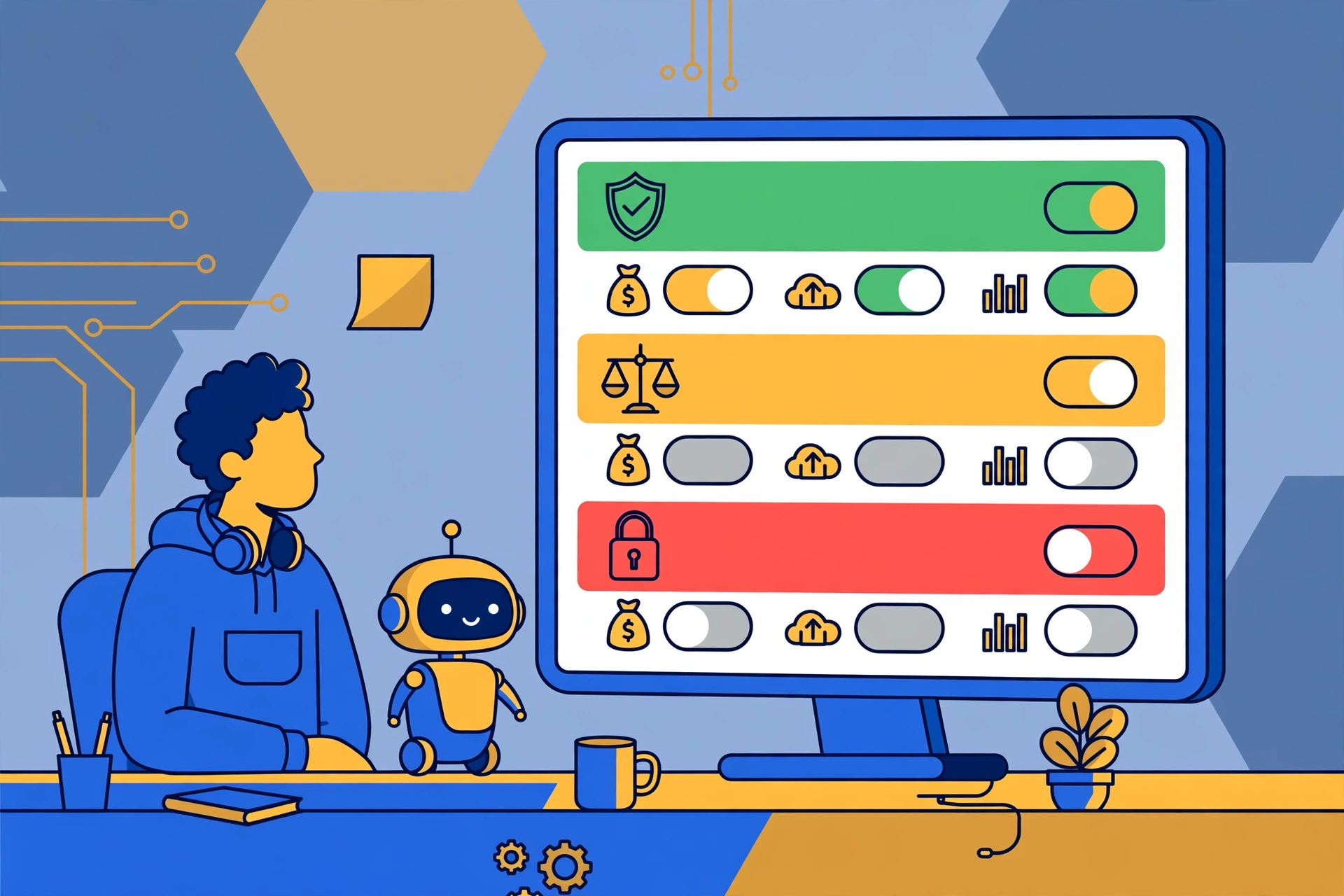
The control centre for all of this is the MCP Permissions tab. You can open it two ways: click MCP in the bottom-right of Studio, then MCP Permissions; or open Assistant, click …, go to Settings, then MCP Permissions. Permissions save to your account for each game, and collaborators set their own — enabling a scope for yourself does not enable it for your team.
When you first open the tab, you pick a starting level. Roblox offers four:
| Level | What it means |
|---|---|
| Safe | Low-risk scopes only; most permissions off. |
| Balanced | The default start — low- plus moderate-risk scopes. |
| Full access | Every scope, including high-risk ones (Robux spending, live publishing, player impact). A deliberate choice, not a default. |
| Custom | Shown after you tweak individual toggles. |
Below the level, the tab breaks access into sections, each mapping to Open Cloud scopes or script capabilities: looking at your game, editing your game, money and monetisation, publishing and managing assets, saving and loading data, connecting to the internet, and players and social consequences. Section names can change as Roblox expands the feature. The practical rule is simple: enable only the sections the task in front of you needs, and switch the risky ones off again when it is done.
What You Can Ask the Same Chat to Do Now
Setting up a store is the clearest example: ask the agent to create developer products and game passes with prices and icons through open_cloud_invoke, instead of clicking through Creator Hub. Our game pass guide covers the pricing the agent cannot decide for you. Changing settings is the second job: update the game description, publish a new version, or restart servers after an update, all from chat. The third is analytics: after publishing, ask how the update performed and the agent can read the numbers back to you. The fourth is pulling data in: call an API on your allow-list and use the response inside the place.
Start with the read-only jobs: looking at settings or reading analytics only needs the "look at your game" scopes, so you can learn the workflow with nothing at stake. Move to writes — products, settings, publishing — only after you have seen the permission prompts work. And keep the agent on a copy of your game while you learn: permissions are per game, so a test place with Safe or Balanced access is the right sandbox for your first session.
Asset Import Workflows: From Blender and Maya Into Your Place
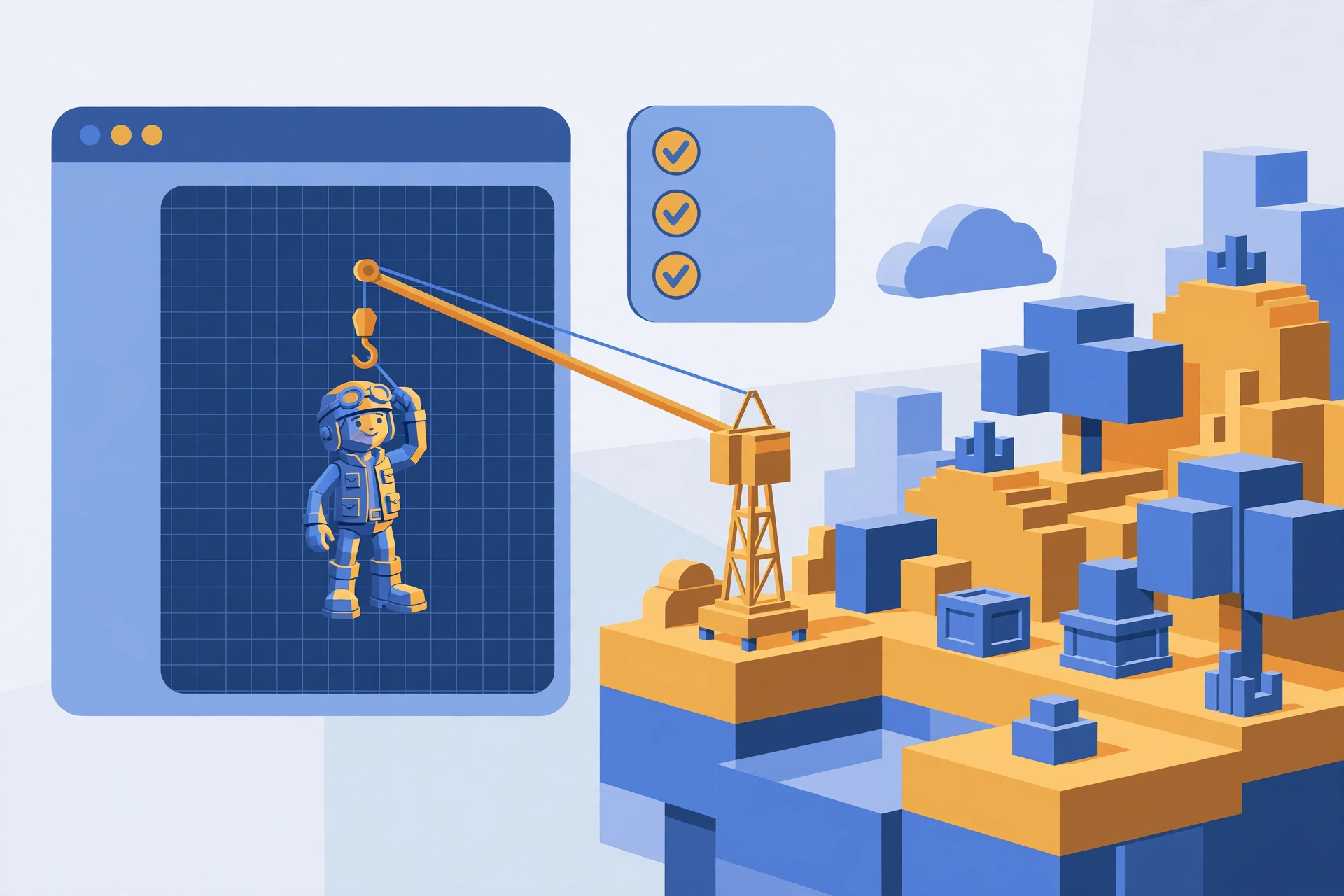
The second half of the November 4 update is the asset import workflow. Ask the agent to bring a model from Blender, Maya or any tool that exports GLB or FBX-style assets into the open place. The flow runs in four stages: export, upload, insert, then compare against the source and fix common import damage — scale and rotation corrected, textures restored when an import comes in grey, anchoring fixed.
Three requirements gate this workflow: turn on the Publish & manage assets permission section; approve the folder the exports live in, because uploads can only read files from approved upload folders; and expect a confirmation step, because the import Skill is designed to confirm with you before uploading anything. That confirmation matters: uploads are permanent and go through moderation like any other asset, and you are responsible for what an agent uploads on your account. A file you did not mean to publish cannot simply be taken back, so import on a throwaway place first and check the result in Studio before bringing the workflow to your live game.
The Three New Skills
Roblox also shipped three Skills — reusable instruction packs that teach an agent how to behave — under Assistant → … → Assistant Settings → Skills.
| Skill | What it teaches the agent |
|---|---|
| rbx-open-cloud-usage | Call Open Cloud with open_cloud_invoke; pick endpoints, handle errors. |
| rbx-permissions | Work out needed permissions, check which are on, ask only for missing ones. |
| rbx-import-asset | Import a model from an external 3D tool, then check and fix it. Builds on the other two Skills. |
Duplicating a Skill lets you customise it, but your copy will not receive future updates Roblox makes to the original. And remember the honest limit: Skills teach agents, they do not replace your permission choices — an agent that asks for Full access can still be refused, and should be, unless a named task genuinely needs it.
How to Set It Up Safely
To try Open Cloud access today, follow this order:
- Open a non-production place. A copy of your game, or a throwaway baseplate, is the right first home for agent-driven Open Cloud calls.
- Open the MCP Permissions tab (MCP → MCP Permissions) and note the four levels. Start at Safe or Balanced — leave Full access off.
- Connect your MCP client using the current Studio MCP setup for your tool (see our AI in Studio guide). Only connect clients you trust: treat every connected client as having write access to your open place.
- Ask for a read-only task first — look at game settings, or read analytics — with only the "look at your game" scopes enabled.
- Enable one section at a time as tasks need it: money and monetisation only while setting up a store, publish and manage assets only while importing.
- Switch risky sections off again when the task is done, and tell collaborators to set their own scopes — yours do not cover them.
- Never paste an Open Cloud API key into an AI client for this path. That is the old mental model: for Studio MCP Open Cloud access, no API key is required.
One known issue: unsaved places cannot add HTTP allow-list domains for execute_luau until you save or publish the place, according to the Weekly Recap for November 2–6, 2026. If an API call fails on an unsaved place, save first, then add the domain.
What Did Not Change
A few traps are worth naming plainly:
| The trap | The truth |
|---|---|
| "The Assistant uses the same MCP Permissions" | No — external MCP clients only, not the built-in Studio Assistant. |
| "One collaborator's scopes cover the team" | No. Permissions are per person, per game. |
| "No API key means no risk" | No. Scopes can still publish your game and spend Robux. |
| "Import is local only" | No. Uploads are permanent and moderated. |
| "This replaces Creator Hub" | No — Creator Hub still exists; chat is another path, not a replacement. |
| "MCP works from anywhere" | No. The Studio MCP server is a local process on your computer. |
With those limits in mind, the update is genuinely useful: products, publishing and numbers can move into the same chat where the building happens. Used carelessly, with Full access on a live game, the same chat can do real damage in seconds — the permission tab is the difference. Open it before you connect anything.
Frequently Asked Questions
Do I need an Open Cloud API key to use MCP Open Cloud access?
No — not for this path. When an external MCP client calls open_cloud_invoke through Studio, Studio signs the request with a token limited to the scopes you enabled for that game. Roblox's FAQ answer is that no API key is required. Third-party MCP servers and plugins that manage monetisation are different: they still use their own Open Cloud API keys.
Does the built-in Studio Assistant use the same MCP Permissions?
No. Roblox states that these permissions and Skills apply to external MCP clients only — Claude Code, Cursor, Codex and similar tools. The built-in Studio Assistant has its own controls and does not use the MCP Permissions tab.
What happens if I turn on Full access?
Full access enables every scope, including high-risk ones such as Robux spending, live publishing and player impact. Only use it for a named task on a non-production place, and switch the risky sections off again afterwards. Balanced is the default starting point for most creators.
Can an agent publish my game or spend Robux without me knowing?
Only if you enabled the scopes that allow it. The agent cannot enable permissions by itself, and permissions are per person and per game. Keep Money & monetisation and Edit your game off unless a task needs them, and review which scopes were actually used after your first week of agent sessions.
Can I use MCP Open Cloud access on my live game?
You can, but you should not start there. Permissions are per game, so practice on a copy or a test place with Safe or Balanced access first. Agent uploads are permanent and moderated, and a publish or a settings change on a live game affects real players immediately.
Why can't my agent add an HTTP allow-list domain in an unsaved place?
That is a known issue noted in Roblox's Weekly Recap for November 2–6, 2026: unsaved places cannot add HTTP allow-list domains for execute_luau until the place is saved or published to Roblox. Save the place first, then add the domain.
Related Guides on RBXMods
- How to use AI in Roblox Studio: Assistant, Planning Mode and MCP — the built-in MCP server setup, Quick Connect clients and the tools it exposes.
- How to make a game pass on Roblox — pricing, selling and scripting a game pass, the store setup an agent can now run for you.
- How to publish your Roblox game in 2026 — the audience flow, early testers and the checks that decide who can play.
- Are Roblox Toolbox free models safe? — the checks to run before any model, agent-imported or not, goes into your game.
- Roblox Wallet and Card explained — how creator earnings will be paid out daily from December 2026.
RBXMods is not affiliated with or endorsed by Roblox Corporation. Roblox and the Roblox logo are trademarks of Roblox Corporation.
Sources
- Roblox Creator Documentation: Connect to the Roblox Studio MCP server — enabling the built-in MCP server, Quick Connect clients, the tools it exposes, and the one-agent-at-a-time rule. (Page verified loading in the live browser on 2026-11-09; re-verification was not possible in this run because Roblox domains are policy-blocked for text fetch — see the content log.)
- What Roblox Studio MCP Open Cloud Access Changed for Creators — 2026 — independent summary of Roblox's November 4, 2026 announcement and the MCP Open Cloud documentation, covering open_cloud_invoke, the MCP Permissions tab, the three Skills and the asset import workflow. (Confirmed loading 2026-11-11.)
- Building Roblox Games with AI Using MCP — independent guide to the built-in Studio MCP server, updated October 30, 2026: setup, Quick Connect clients, tool names, and the warning to only connect clients you trust. (Confirmed loading 2026-11-11.)