How to Publish Your Roblox Game in 2026: Early Testers, the 16+ Route and the New Audience Flow
Publishing a game and making it public are still two different jobs — but in late 2026 the road between them changed. Here is the new flow: test with up to 10 early testers, take the shorter 16+ route if your game qualifies, and understand what reaching younger players still requires.

In this guide
How to Publish a Roblox Game: The Three Stages in Order Stage 1: Publish from Studio Stage 2: Let a few people test it Stage 3: Choose an audience The Shorter 16+ Route: One Question Instead of the Full Questionnaire Reaching Younger Players: What Has Not Got Easier Before You Press Public: A Short, Honest Checklist Troubleshooting: Why Your Game Still Is Not Public Frequently Asked Questions Is publishing the same as making my game public? How many early testers can I invite? Do I still need the full questionnaire for a 16+ release? Can I reach Kids and Select audiences on day one? What if my Studio menus still say Private and Limited? Related Guides on RBXMods SourcesAsk a new creator what "publishing" means and you will usually get the wrong answer — or at least an incomplete one. Pressing publish in Studio uploads your game to Roblox. It does not, on its own, let strangers play it. The second job is audience: deciding who is allowed in, proving what your game contains, and meeting the checks Roblox sets for each age group. That second job is exactly what changed in late 2026, and it is the part most older guides no longer describe correctly.
On October 12, 2026, Roblox announced a simpler publishing flow that is rolling out to creators over the following weeks. The headline changes are practical: you can invite up to 10 early testers to play an unreleased game, a game without age-restricted content can reach age-checked players aged 16 and older through a shorter route, and the old Private and Limited audience labels are being replaced by Playtest and Public in the new flow. If your menus still show the old labels, that does not mean you did something wrong — it most likely means the rollout has not reached your account yet. Follow the labels on your own screen, and use this guide to understand what each step is for.
Key takeaways
- Publishing in Studio uploads your game; audience settings decide who can play it. A published game can still be closed to strangers.
- You can now invite up to 10 early testers to preview an unreleased game before it is rated or public.
- A game with no age-restricted content can reach age-checked players 16+ through a shorter, one-question route instead of the full questionnaire.
- Reaching younger players — Kids and Select audiences — still needs the full checks and evaluation. The easier first release does not remove them.
How to Publish a Roblox Game: The Three Stages in Order
Think of launch as three stages, in this order. Skipping a stage is the usual reason a game looks "published" but nobody can join it.
Stage 1: Publish from Studio
Open your place in Studio and use File > Publish to Roblox (wording varies slightly as menus update; in the newest flow it may simply read Publish). For a first upload, create a new experience, give it a name and description, and choose the devices it supports. Your game is now stored on Roblox and you can keep updating it by publishing again — each publish replaces the live version for players who join afterwards. At this point, only you (and collaborators with edit access) can play it.
Stage 2: Let a few people test it
This is where the October 2026 change helps most. Previously, showing an unfinished game to a friend could mean meeting the full publishing requirements first. Now, age-checked creators aged 9 and older can invite up to 10 early testers — friends for an individually owned game, or group members for a group-owned game — to preview an in-development game in the Roblox app before its public launch, even before it has a maturity rating. You can manage the list from Studio through the Collaborate button and its Early testers tab, or in Creator Hub under Creations > Experiences > your game > Configure > Permissions, under Collaborators. Keep the list small on purpose: ten honest testers who actually report bugs beat fifty friends who only say "nice game".
Stage 3: Choose an audience
When the game is ready for strangers, open Creator Hub, select your experience, and use the audience controls in Creator Hub. You will see tabs for the audiences your game can reach. Playtest covers you, editors and your early testers. Public is the release step — and this is where the game splits into two very different routes, covered next.
The Shorter 16+ Route: One Question Instead of the Full Questionnaire
For most first games, the sensible first public audience is age-checked players aged 16 and older. Under the new guided flow, a game without age-restricted content can take this route by answering one confirmation question, rather than completing the full Maturity and Compliance Questionnaire. The guided flow walks you through the requirements in sequence and keeps progress in sync between Creator Hub and Studio, so you are less likely to finish one side and forget the other.
Do not game this question. It is a confirmation about what your game actually contains, and answering it inaccurately to get a faster release is exactly the kind of misrating that gets a game moderated later. If your game contains anything that might be age-restricted, or you are unsure about any content in it, stop and complete the full questionnaire instead. A slower, honest rating is always cheaper than a takedown after players have found your game.
Your account must still be in good standing, and reaching 16+ players requires an age check. If the flow blocks you, read the exact requirement it names and fix that item rather than re-answering the same question hoping for a different result.
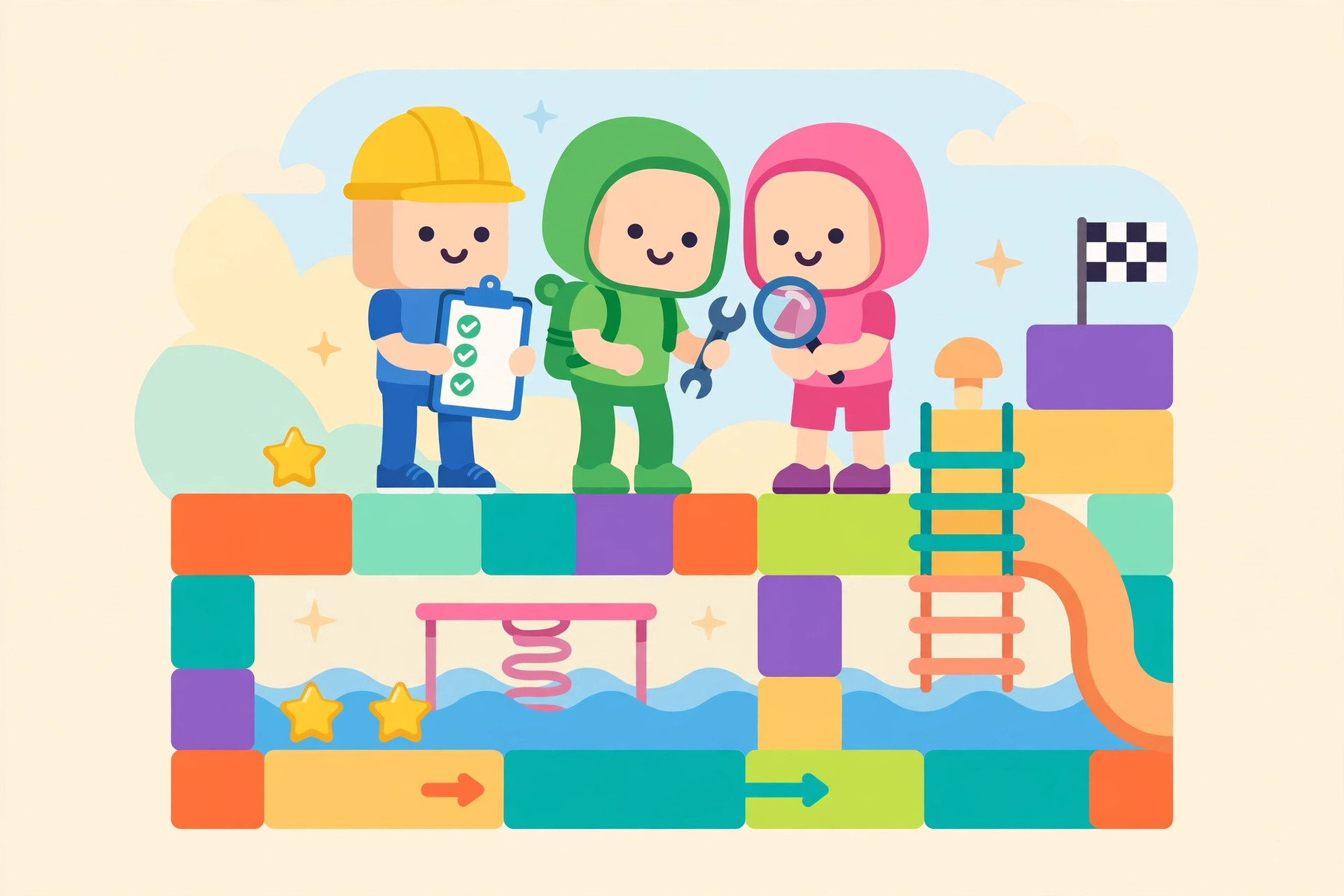
Reaching Younger Players: What Has Not Got Easier
Here is the distinction the October announcement is careful about, and the one new creators most often miss: an easier first release does not remove the requirements for reaching younger audiences. Kids (ages 5–8) and Select (ages 9–15) audiences still go through the fuller publishing requirements, including ID verification, two-step verification, a content evaluation, and either a subscription condition or a refundable fee route, depending on the path Roblox offers your account. The full questionnaire still applies here too, because the rating has to be right for much younger players.
There is also an engagement bar to understand. Games seeking broader eligibility have needed a number of qualifying plays from highly engaged, age-checked 16+ players within 60 days — 250 at the time of the October announcement, with Roblox planning to lower that threshold to 100 during November 2026. As of this writing, treat 100 as planned, not as already live: check your game's Eligibility or Audience Reach status in Creator Hub for the number that actually applies to you, and do not announce a Kids or Select launch date based on a threshold that has not yet taken effect for your game. Creator Hub engagement counts now refresh hourly rather than once a day, so once you are in evaluation, you can watch progress much sooner — but hourly updates do not make the bar itself lower.
Before You Press Public: A Short, Honest Checklist
The new flow makes the mechanics faster, but it does not make a bad first version good. Run through this list first:
- Play it as a stranger. Test with a second account if you can: the owner can always join their own private game, so owner-only testing hides permission problems.
- Fix the first five minutes. A new player should understand the goal, earn something, and know where to go without instructions. If early testers wander, that is a design problem.
- Set an icon and thumbnails that show the game, not a logo. Our publish, icon and thumbnail guide covers sizes and what actually gets clicks — the icon is 512 × 512 and thumbnails are 16:9, but the rule that matters is one clear subject a scrolling player can read instantly.
- Write a description that says what you do in the game. One sentence of promise, one sentence of how it plays, and no claims you cannot deliver. Players forgive a small game; they do not forgive a misleading one.
- Turn off anything unfinished that charges Robux. A game pass or developer product that does nothing on day one earns bad ratings faster than any bug. Test purchases in Studio first, and only sell what already works.
- Publish one final time after your fixes. It is easy to fix bugs in Studio and forget that players still see the older published version. Your last publish should be the version you tested.
Troubleshooting: Why Your Game Still Is Not Public
Almost every "I published but nobody can play" problem is one of these:
- You published, but never changed the audience. Publishing alone leaves the game closed. Check Creator Hub: if it still shows Playtest or Private, strangers cannot join yet.
- An age check or account requirement is unmet. The flow will name it. Complete the age check, or the ID and two-step verification steps for younger audiences, rather than retrying the same button.
- The questionnaire is incomplete or inconsistent. If you answered that a game contains something in one place and denied it in another, the flow will hold the release. Re-read your answers against what is actually in the game.
- Your menus look different from this guide. The guided flow is rolling out over weeks, and Studio and Creator Hub do not always update on the same day. Use the labels on your screen — Playtest/Public in the new flow, Private/Limited in the old one.
- Early testers cannot join. Check they are on your early tester list (not just friends), they meet the game's age compatibility, and they are opening it in the Roblox app. An invite is not edit access, and edit access is not tester access.
- Nobody plays after going public. That is normal, not broken: a public game with no icon, description or first players gives discovery nothing to show. Our guide to making a game popular explains the signals that actually move a new game.
Frequently Asked Questions
Is publishing the same as making my game public?
No. Publishing uploads your game to Roblox. Audience settings decide who can play it. A game can be published and still closed to strangers, which is the correct state while you are testing.
How many early testers can I invite?
Up to 10. For an individually owned game, invite friends of the owner; for a group-owned game, invite group members. Eligibility can also depend on age compatibility, so not every friend will necessarily be eligible.
Do I still need the full questionnaire for a 16+ release?
Not if your game has no age-restricted content and you qualify for the shorter route — then one confirmation question covers it. If your game contains age-restricted content, or you want to reach younger players, complete the full questionnaire.
Can I reach Kids and Select audiences on day one?
Not through the shortcut. Younger audiences still require the full checks and evaluation, including an engagement threshold that was 250 qualifying plays and is planned to fall to 100 during November 2026. Check Creator Hub for the threshold that applies to your game right now.
What if my Studio menus still say Private and Limited?
Use them as they are. The new Playtest/Public flow is rolling out over weeks, so accounts update at different times. The underlying order — publish, test, then choose an audience — is the same in both versions.
Related Guides on RBXMods
- How to publish your game: icon, thumbnail and description — the presentation half of a launch, with sizes and design rules.
- How to make a game in Roblox — from first idea to a playable game, before you ever press publish.
- How to make your game popular — what happens after launch, and which signals discovery actually rewards.
- How to make a game pass and sell it for Robux — monetisation to add only once your game already works.
RBXMods is not affiliated with or endorsed by Roblox Corporation. Roblox and the Roblox logo are trademarks of Roblox Corporation.
Sources
- Roblox Creator Documentation: Overview — the official documentation hub for building and publishing on Roblox.
- Roblox Creator Dashboard: Creations — where experiences are managed, including audience and permissions settings.
- Roblox Developer Forum: RDC26 — What We Announced — Roblox's own RDC26 announcement summary, including the planned November drop in the highly engaged player threshold.
- Roblox Creator Documentation: Roblox Kids and Select — age-based account types and publishing requirements for games aimed at younger audiences.
- Roblox Creator Documentation: Roblox Studio setup — Studio, the free application for creating games on Windows and Mac.
- Roblox Creator Documentation: Get Started — introduction to developing on Roblox and its tools.