Roblox Device Trust API: Can It Tell If a Player's Device Is Trustworthy?
Roblox's Device Trust API tells your game whether a player is on a real, unmodified device — and lets you decide what happens next. The five trust levels, the platforms covered, and the code to use it.


In this guide
What the Roblox Device Trust API Actually Checks The Five Trust Levels of the Roblox Device Trust API Which Devices Report Which Level How to Use the Roblox Device Trust API Three Ways to Use a Trust Level Check Your Players Before You Enforce Anything The Mistakes That Hurt Real Players Device Trust and Web Play Frequently Asked Questions What is the Roblox Device Trust API? Which platforms does Device Trust support? Does Roblox ban players with a low trust level? Should I reject players at Unknown? Why do web players always report None? Can I check a player's trust level after they join? Related Guides on RBXMods SourcesEvery competitive Roblox game has the same problem: some players are not on a real device. They are bots on farms of cheap phones, or cheaters running a modified client. Server-side validation catches what those players do, but not what they are playing on — and for trading, ranked matches and economies, that matters. The Roblox Device Trust API, announced on October 28, 2026, answers exactly that question. It asks the device itself to prove it is real and unmodified, using hardware signals, and hands your game a trust level for each player — Full, Standard, None, Unknown, or Pending while the check runs. Roblox does not act on the level — you decide what happens next. This guide explains the check, the levels, the platforms, and how to use it without locking out real players.
Key takeaways
- The Roblox Device Trust API uses hardware signals to judge whether a player's device is real and unmodified: Pending, Unknown, None, Standard or Full.
- It works today on Android, Chromebook and Meta Quest. Web browsers report None, and iOS, macOS, Windows, Xbox and PlayStation report Unknown until Roblox supports them.
- Roblox takes no action on the level — your server script decides, through the IntegrityService.EvaluatePlayerDeviceTrust callback, whether to accept, route, gate or reject a player.
- Check your own players first in Creator Hub under Safety > Anti-cheat, and never reject on Unknown: most PC and console players are Unknown today, and every web player is None — if you reject at all, reject None narrowly.
What the Roblox Device Trust API Actually Checks
Hardware signals are the key idea, and it is simpler than it sounds. When a player joins, Roblox asks the device to prove, using its own built-in security features, that the operating system has not been tampered with and the Roblox client has not been modified. A real phone can answer. A modified client, an emulator pretending to be a phone, or a device with its protections stripped out cannot — or can only answer partly. The result is a trust level for the device, not a verdict on the player.
The API has honest limits. A Full device can still belong to a player who cheats in ways the device cannot see. A None device can still belong to a real player on an old phone that cannot pass the check. It raises the cost of cheating at scale: running a hundred bots gets much harder when each one needs a real, unmodified device. It is one layer in a defence, next to server-side validation and the Ban API — it replaces neither.
Roblox takes no action based on the trust level — the announcement and the Creator Docs are explicit about that. No player is kicked, gated or flagged automatically. Your game reads the level and decides, which is why the rest of this guide is about decisions, not just definitions.
The Five Trust Levels of the Roblox Device Trust API
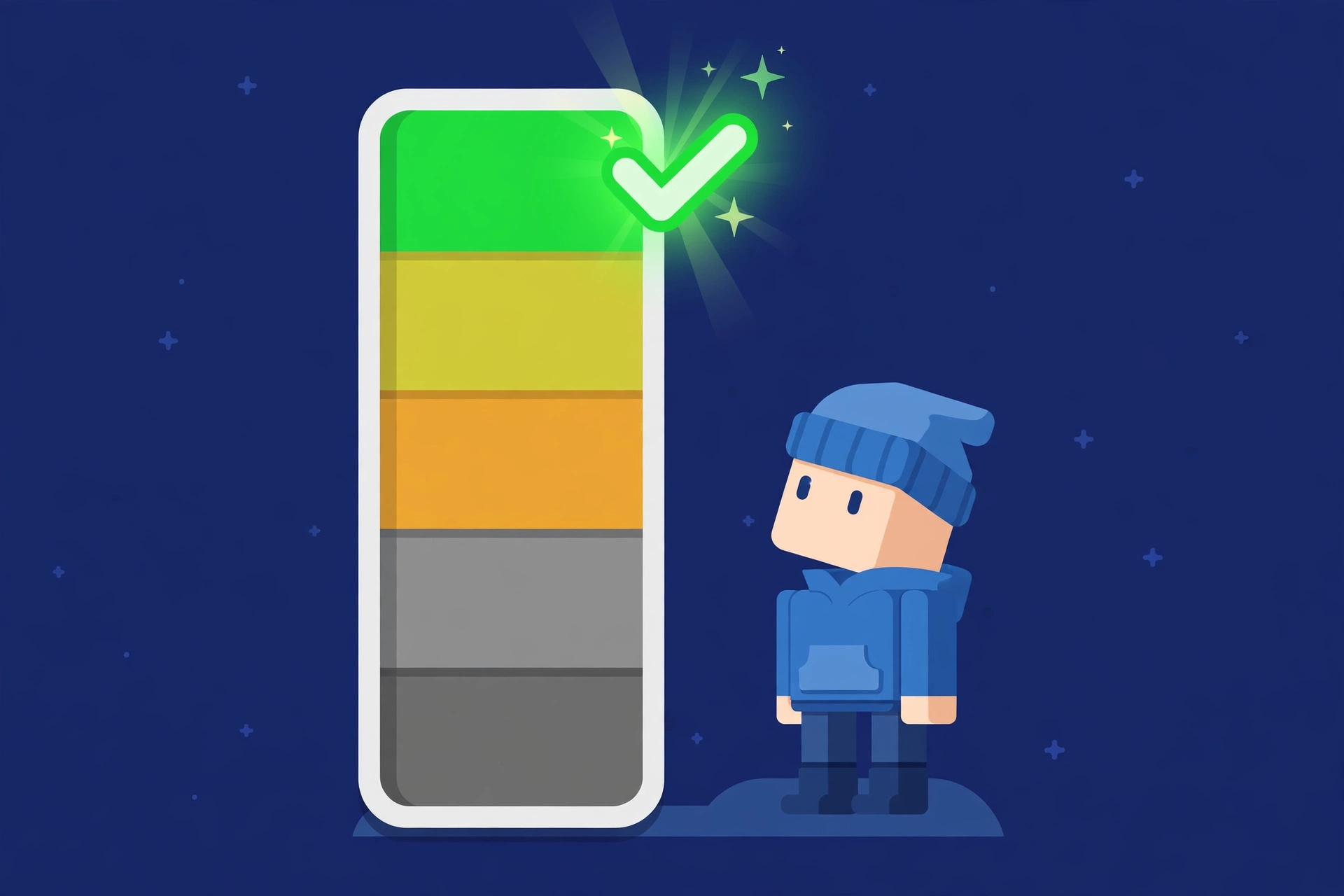
Every player starts at Pending and usually moves to one of four settled levels once the check finishes — but the check can stay at Pending for the whole session.
| Level | What it means |
|---|---|
| Pending | Roblox is still checking the device. Every player starts at this level. |
| Unknown | Roblox cannot tell whether the device is trustworthy — unsupported platform, or an error on Roblox's side. |
| None | The device failed the check, or the player is on a platform that cannot be verified and is often used for cheating. Players here usually need another device, although some can fix theirs. |
| Standard | The device passed some checks, but not all. It is mostly secure, and the player can usually reach Full by updating or fixing the device; some devices cannot go above Standard. |
| Full | The device passed every check and is fully secure. |
Unknown is not a judgement — it is the absence of information. A player on Windows or iOS is Unknown today because Roblox does not check those platforms yet — treating Unknown as untrusted punishes PC and console players for a check never run on them. None is the level that means something went wrong, but it is still not proof of cheating — it is a reason to limit what that device can do. And Pending is different: treat it as not yet trusted. Wait briefly for a result, and if it stays Pending, keep sensitive features such as trading locked — the check may never finish, and players can start playing before their level is available. The docs include a sample that holds a player until the callback runs.
Which Devices Report Which Level
Support is the narrowest part of the API today. The Creator Docs give the full picture:
| Platform | Status | Reported trust level |
|---|---|---|
| Android | Supported | None, Standard, or Full |
| Chromebook | Supported | None, Standard, or Full |
| Meta Quest | Supported | None, Standard, or Full |
| Web browser | Cannot be verified | None |
| iOS | Coming soon | Unknown |
| macOS | Coming soon | Unknown |
| Windows | Coming soon | Unknown |
| Xbox | Coming soon | Unknown |
| PlayStation | Coming soon | Unknown |
The announcement is blunter: support is Android-only today, with the web client coming and the other platforms later. A staff reply in the announcement thread (November 4, 2026) confirmed the same; the docs also list Chromebook and Meta Quest as supported. Either way, if most of your players are on PC, console or iOS, most of them will report Unknown, and a policy built for Android will misfire on them. The docs say it plainly: until Roblox supports a platform, players on it report Unknown.
How to Use the Roblox Device Trust API
The API has two pieces, both on the server. The first is the IntegrityService.EvaluatePlayerDeviceTrust callback: assign a function to it in a server Script, and Roblox calls it when a player joins. The function receives the player and the check's measures, and returns a decision table: an Action (required) and a Message (optional). Accept lets the player stay; Reject disconnects them, showing the Message you set — or a default message if you leave it out. The second piece is the Player.DeviceTrustLevel property, which you can read on the server at any time.
Here is the reject-on-join sample from the Creator Docs — it rejects players whose devices fail the check and accepts everyone else, including Unknown:
local IntegrityService = game:GetService("IntegrityService")

IntegrityService.EvaluatePlayerDeviceTrust = function(player, measures)
	if player.DeviceTrustLevel == Enum.PlayerDeviceTrustLevel.None then
		return {
			Action = Enum.PlayerDeviceTrustDecision.Reject,
			Message = "This game can't verify your device.",
		}
	end

	return { Action = Enum.PlayerDeviceTrustDecision.Accept }
end
Three things to notice about this sample. First, it only rejects None: Unknown is accepted, because it means "no information", not "failed". Second, it runs on the server, in ServerScriptService, so a modified client cannot change the decision — never do this check on the client. Third, the callback is one per place and runs at join time. To react later — gating a trade when a player opens the trading window, for example — read player.DeviceTrustLevel on the server at that moment. The docs page has seven samples in total, so this join-time reject is the starting point, not the whole toolkit.
Three Ways to Use a Trust Level
Rejecting players is the bluntest use, and for most games it should be the last one you reach for. Two gentler uses get most of the benefit. The first is routing: send players to different servers by level. A ranked queue can take Standard and Full players, while Unknown and None players use the open queue. The second is gating features, not players: let everyone play, but require Standard or Full for the things cheaters abuse — trading, high-value rewards, ranked matches. A None player can still enjoy the game; they just cannot use the trading window until they switch devices.
Rejection has its place: a small competitive game with a serious bot problem, or a game where one modified client ruins the match for everyone. If you do reject, reject narrowly — None only, as the sample above does — and say why, so a real player on a failing device knows what to fix. Whichever use you pick, decide on the server and tell the client the result through a RemoteEvent: the client learns what it may do from the server, never decides for itself.
Check Your Players Before You Enforce Anything
Before you write a rule, look at who actually plays your game. Roblox added a page to the Creator Hub for exactly this: open your game's page, go to Safety, then Anti-cheat. It estimates how your daily active users, playtime, and revenue on supported platforms break down by device trust level. If 5 percent of your players are None and they are the accounts that keep getting reported for botting, a rule that gates trading for None has a clear target. If most of your players sit at Full or Standard, a narrow gate costs you little.

The Mistakes That Hurt Real Players
The first mistake is treating Unknown as untrusted. Unknown is the default for every platform Roblox does not check yet — Windows, macOS, iOS, Xbox, PlayStation — most of the player base for many games. Kicking Unknown players is kicking players Roblox never checked. The second is forgetting the web: every player in a browser reports None, because a browser cannot be verified. Reject None outright and you also reject every player testing your game in Web Play, and every future player who joins from a browser.
The third is treating Pending as trusted: every player starts there, and the check may never finish, so a rule that grants sensitive features to Pending players lets unchecked players through. Keep trading and other sensitive features locked until a real level arrives. The fourth is trusting the client: reading the level in a LocalScript, or letting the client report its own level, defeats the purpose, because a modified client can report anything. The level is a server-side fact; keep it there. And the fifth is forgetting this is one layer: keep validating actions on the server exactly as before, and let the trust level decide which doors are open, not whether the game is secure.
Device Trust and Web Play
Web Play lets creators test games in the Chrome browser, and the web client cannot be verified, so every web player reports None. That does not mean web players are cheaters — the check cannot run in a browser. If your game rejects None, your own web playtests will fail, and so will anyone who joins from a browser. Treat None as "limit sensitive features" rather than "reject". In Studio the level is always Pending, so use Studio to test how your game handles Pending, and test real levels on an Android device before turning your rules on for web players.
Frequently Asked Questions
What is the Roblox Device Trust API?
It is a server-side API that uses hardware signals to judge whether a player's device is real and unmodified, and reports a trust level — Pending, Unknown, None, Standard or Full — that your game can act on. It was announced on October 28, 2026.
Which platforms does Device Trust support?
Android, Chromebook and Meta Quest are supported today. Web browsers cannot be verified and always report None. iOS, macOS, Windows, Xbox and PlayStation report Unknown until Roblox supports them.
Does Roblox ban players with a low trust level?
No. Roblox takes no action based on the trust level. Your game decides what happens — accept the player, route them to a different server, gate a feature such as trading, or reject them.
Should I reject players at Unknown?
No. Unknown means Roblox could not check the device, usually because the platform is not supported yet — which is the case for most PC, console and iOS players today. Rejecting Unknown would lock out real players who were never checked.
Why do web players always report None?
A browser cannot be verified by hardware signals, so the web client always reports None. That does not mean web players are cheaters — it means the check cannot run there. Do not hard-reject None if you want web players, including Web Play testers, to be able to join.
Can I check a player's trust level after they join?
Yes. Read player.DeviceTrustLevel on the server at any time — for example, when a player opens the trading window — instead of relying only on the join-time callback.
Related Guides on RBXMods
- Roblox cross-game Ban Lists explained — the other new moderation tool: ban a player across all your games at once, launching January 29, 2027.
- Roblox ServerRegion explained — another server-side read: which data centre your live server runs in, and how to use it.
- Roblox Web Play switches to WebGPU — why every web player reports None, and what the browser client can and cannot do yet.
- Roblox RemoteEvents and RemoteFunctions explained — how the server tells the client what it is allowed to do, and why the decision must stay server-side.
RBXMods is not affiliated with or endorsed by Roblox Corporation. Roblox and the Roblox logo are trademarks of Roblox Corporation.
Sources
Sources last reviewed November 25, 2026; each page was verified loading on the date noted beside it.
- Roblox Developer Forum: Improve Your Game Security with the Device Trust API — the announcement (October 28, 2026): the four settled trust levels, the Android-first launch, the IntegrityService.EvaluatePlayerDeviceTrust callback, and the Creator Hub Safety > Anti-cheat breakdown page. (Verified loading in the live browser 2026-11-25.)
- Roblox Creator Documentation: Device trust — the trust-level definitions including Pending, the supported-platforms table, the rule that Roblox takes no action on the level, and the Luau samples including the reject-on-join script quoted in this guide. (Verified loading in the live browser 2026-11-25.)
- Galixor: Roblox Device Trust API — Improve Your Game Security with — independent summary (October 27, 2026): the four levels, the Android and web launch, the server-side callback, and the Creator Hub Anti-cheat page. (Verified loading 2026-11-25.)
- Roblox Developer Forum: Sharper Web Play Rendering With WebGPU — the November 19, 2026 Web Play update, cited for the web client context in the Device Trust and Web Play section. (Verified loading in the live browser 2026-11-22.)
- Roblox Creator Hub: Creator Updates — the official listing where Roblox announcements appear. (Verified loading in the live browser 2026-11-23.)