How to Block a Game on Roblox: Parental Controls Explained
Roblox lets a linked parent block one specific game without touching anything else. Here are the exact steps, what your child still sees after a block, and how to undo it.

In this guide
What Blocking a Game Actually Does Before You Start: You Need a Linked Parent Account How to Block a Game on Roblox What Your Child Sees After a Block How to Unblock a Game on Roblox When Your Child Asks to Play a Blocked Game When Blocking One Game Is Not Enough If the Block Does Not Seem to Work Frequently Asked Questions How do I block a game on Roblox? Can I block a game on Roblox without a parent account? Does blocking a game hide it from search? Why can my child still play a game I just blocked? How do I unblock a game on Roblox? Can my child ask me to allow a blocked game? Related Guides on RBXMods SourcesEvery parent who has watched their child play Roblox has had the same moment: one specific game is the problem, not Roblox as a whole. Maybe it is a chat-heavy hangout, a game with content that does not suit your child, or simply a game that eats every free hour. Roblox has a built-in answer: a linked parent account can block one game at a time, while everything else on the account keeps working. This guide shows you how to block a game on Roblox, what your child sees after you do it, how to unblock a game later, and when blocking a single game is not enough.
Key takeaways
- You block a game from a linked parent account: Settings > Parental Controls > select your child > Content restrictions > Blocked experiences > + > search > Block > Confirm.
- A blocked game still appears in search results and recommendations — your child can open its page, but cannot join it.
- A block applied while your child is already playing takes effect the next time they try to enter, not mid-session.
- Unblocking is the same list in reverse, but it does not override content maturity: a game above the account's maturity level stays locked even after you unblock it.
- Blocking works one game at a time. If the problem is a whole type of content, set the content maturity level instead of blocking games one by one.
What Blocking a Game Actually Does
Blocking a game on Roblox is a narrow, precise tool. It stops one named experience from opening on one child's account. It does not delete the game, block the creator's other games, remove the game from search, or change anything on another account in the family. Think of it as a locked door on one room, not a fence around the house.
Two details surprise most parents. First, a blocked game still shows up in search results and recommendations. Your child can tap it, read its description and see its thumbnails — they just cannot press play. If you expected the game to vanish entirely, it will look as if the block failed. It has not.
Second, a block does not throw a child out of a game they are already playing. If you block a game while your child is inside it, nothing changes until they leave and try to come back — the block takes effect on the next entry attempt.
Before You Start: You Need a Linked Parent Account
You cannot block a game from your child's account itself. The block lives in the parental controls, managed from a parent account linked to the child's account. If you have not set that up yet, do it first — it takes a few minutes, and it is the same setup that unlocks screen-time limits, spending limits and chat controls.
The setup is: sign in to your child's Roblox account, open Settings, go to Parental Controls, and choose Add parent. Enter your own email address, then follow the verification steps — Roblox asks the parent to verify they are 18 or older, using a government ID or a credit card. Once linked, you manage your child's settings from your own account, without needing your child's password.
One alternative: on the child's own device, Roblox offers a Parent mode for eligible accounts, letting a parent change settings directly there. The linked-account route is the one to use from your own phone or computer, and it is the route this guide follows. For the full setup walkthrough, see our parental-controls setup guide linked at the end of this article.
How to Block a Game on Roblox
Once the parent account is linked, blocking a game takes about a minute. The steps are the same on the website and in the app — only reaching Settings differs: on a computer, click the gear icon at the top right; in the mobile app, tap More at the bottom right, then Settings.
Step 1 — Sign in to the linked parent account. Open Roblox on your own account, not your child's. If more than one child is linked to you, double-check you are changing the right child's settings.
Step 2 — Open Parental Controls and select your child. Go to Settings, then Parental Controls. If you have several linked children, choose the child this block is for.
Step 3 — Open Content restrictions. Scroll to Settings you manage and choose Content restrictions — the same screen that holds the content maturity slider.
Step 4 — Open Blocked experiences. Inside Content restrictions, choose Blocked experiences. This list shows every game you have already blocked for this child. The first time you open it, it will be empty.
Step 5 — Search for the game. Tap the + button. Type the game's exact name — or a keyword from its title — into the search bar and press enter. Check the result carefully: Roblox has many games with similar names, and a near-identical title is not necessarily the same experience. Match the icon and creator if you are unsure.
Step 6 — Block and confirm. Tap Block beneath the game's name, then tap Block again to confirm. The game now appears in the Blocked experiences list — that is the whole job, and the block applies immediately to the next entry attempt.
What Your Child Sees After a Block
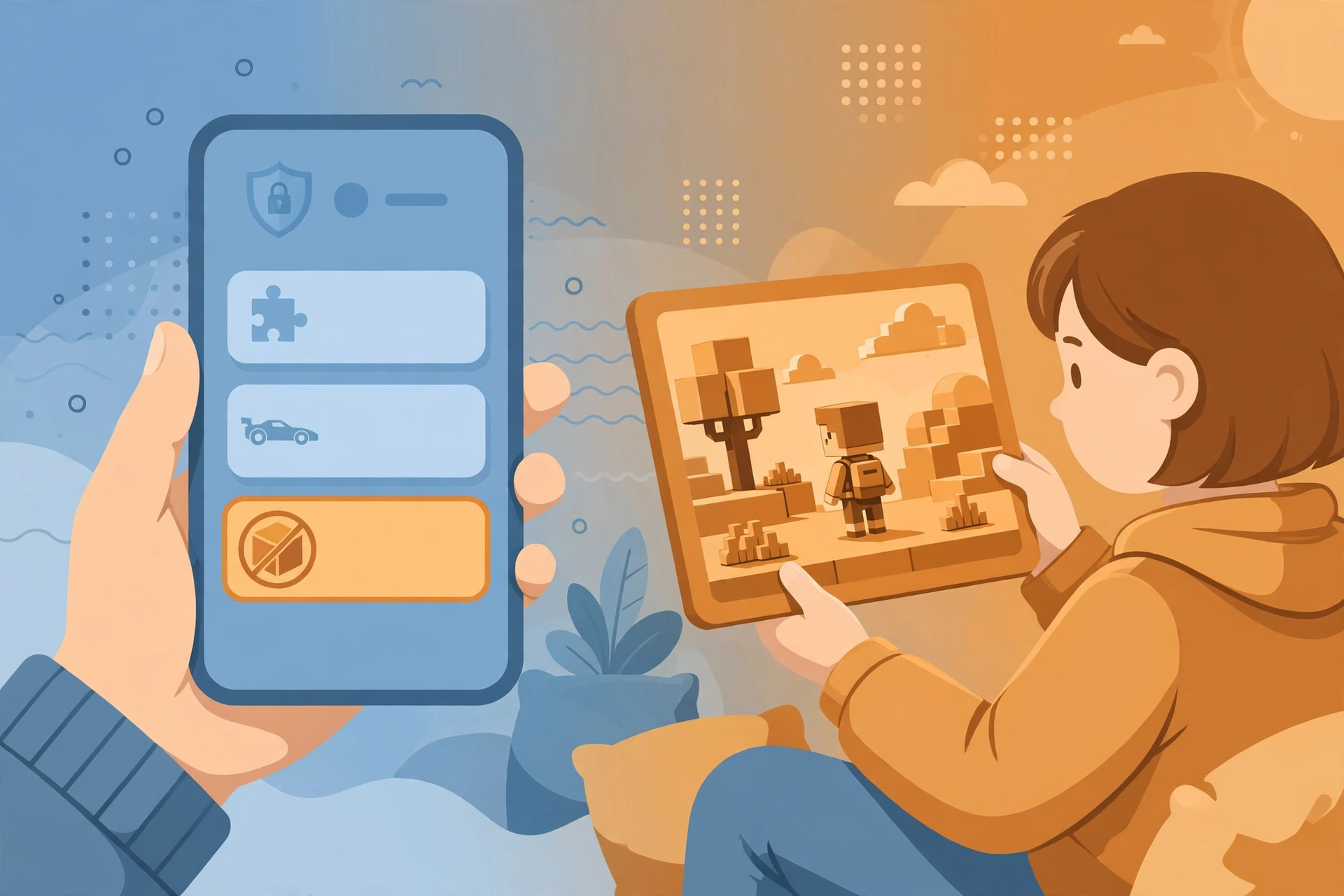
From your child's side, very little changes — and that is deliberate. The game still appears in search and on the home feed, and tapping it opens its page as normal. But there is no option to play, and trying to join does not work. Your child can also see the blocked game on their own blocked-experiences list — and from there, they can ask you to approve unblocking it (see "When Your Child Asks to Play a Blocked Game" below).
That is worth a conversation at home. A block with no explanation feels arbitrary, and the first thing many children do is look for a way around it — a second account, a friend's device, a lookalike game. The block applies to the account it covers, but not to accounts you do not manage. Telling your child which game you blocked and why does more than the block alone.
How to Unblock a Game on Roblox
Blocks are reversible. Sign in to the linked parent account, go to Settings > Parental Controls, select your child, open Content restrictions, then Blocked experiences. Find the game, tap Unblock, and confirm it. The game can be joined again right away.
One catch: unblocking does not override the account's other rules. If the game's content maturity level is above the level you set — a Moderate game on an account set to Mild, for example — it stays locked even after you remove it from the blocked list. If you unblocked a game and it still will not open, check the content maturity setting first.
When Your Child Asks to Play a Blocked Game
Roblox gives children a way to ask. If your child tries to open a game outside what their account can access, they can send a request, and it lands with you under Pending requests in your Parental Controls. Each request lets you choose Allow or Don't Allow.
Approving a request is not permanent. If you allow a game and change your mind later, you can revoke the approval from Content restrictions > Allowed games — the list where you can review everything you have approved.
Use the request as a conversation, not just a button. A child who asks why a game is blocked is giving you the opening to explain the actual reason — the chat, the content, the time sink — and a child who understands the reason is less likely to hunt for the same game under a different name.
When Blocking One Game Is Not Enough
Blocking works one game at a time, and that is its limit. If the problem is a whole kind of content — horror games, chat-heavy hangouts, games with crude humour — you will spend your evenings blocking titles one by one while new ones appear. For that, use the content maturity level on the same screen.
Content maturity is a slider with four levels: Minimal, Mild, Moderate and Restricted. Restricted, the top level, is only for users aged 17 and older who have completed an age check. The level you choose decides which games the account can open at all. Roblox Kids accounts (ages 5–8) can only access Minimal and Mild games, and Roblox Select accounts (ages 9–15) up to Moderate. The linked-parent controls are for accounts under 16: at 16 the account becomes a standard account and the parental controls end.
Pair the maturity level with the other controls on the same screen rather than relying on blocks alone. A daily screen-time limit stops the "one more game" negotiations, a monthly spending limit stops surprise Robux purchases, and the communication settings control who your child can chat with. Blocking one game is a scalpel; the maturity level and the time and spending limits are the rest of the toolkit.
If the Block Does Not Seem to Work
Most "the block is not working" reports turn out to be one of four things. Check them in order before you redo the steps.
You blocked the wrong game. Similar names are everywhere on Roblox. Open Blocked experiences and check the icon and creator against the game your child actually plays. If it is the wrong one, unblock it and search again with the exact title.
Your child is still inside the game. A block only stops the next entry. If your child was already playing when you blocked it, they can keep playing until they leave — the block bites on the next attempt.
You changed the wrong child's settings. If more than one child is linked to your parent account, it is easy to open the wrong one. Check the name at the top of the Parental Controls screen.
The game still appears in search. That is expected, not a failure. Blocked games stay visible in search and recommendations; only joining is blocked. If your child can still press play and enter, re-check the account — and if the block is listed and still not working, remove it and add it again.
One more honest limit: a block covers the account, not the child. If your child signs in on a different account — a second account, a sibling's, a friend's — the block does not follow them. That is why the block works best alongside the conversation above, and why knowing which accounts your child uses matters as much as any setting.
Frequently Asked Questions
How do I block a game on Roblox?
From a linked parent account, go to Settings > Parental Controls, select your child, open Content restrictions, then Blocked experiences. Tap +, search for the game by name, tap Block, and confirm. The game can no longer be joined from that child's account.
Can I block a game on Roblox without a parent account?
No. Blocking a game is a parental control, so it needs a parent account linked to the child's account. Set up the link first — your child opens Settings > Parental Controls > Add parent on their account and enters your email — then manage the block from your own account.
Does blocking a game hide it from search?
No. A blocked game still appears in search results and recommendations, and your child can open its page. Only joining is blocked. If the game has vanished from search entirely, something else changed — for example, the game was removed or renamed.
Why can my child still play a game I just blocked?
A block takes effect the next time your child tries to enter the game, not while they are already inside it. If they were playing when you blocked it, they can finish that session. The block applies on the next entry attempt.
How do I unblock a game on Roblox?
Go to Settings > Parental Controls on the linked parent account, select your child, open Content restrictions > Blocked experiences, find the game, tap Unblock and confirm. Note that unblocking does not override content maturity — a game above the account's maturity level stays locked.
Can my child ask me to allow a blocked game?
Yes. Your child can send a request from the game's page, and you answer it under Pending requests in your Parental Controls. You can also revoke an approval later from Content restrictions > Allowed games.
Related Guides on RBXMods
- How to set up Roblox parental controls — the full setup: linking a parent account, content maturity, screen time and spending limits.
- Roblox Kids vs Select accounts explained — which games each account type can open, and why a favourite game can be missing from the catalogue.
- How to verify your age on Roblox — the age check that decides the account type, the chat rules, and what parents can change.
- How to keep your Roblox account safe — 2-step verification, passkeys, and the scams that target children's accounts.
RBXMods is not affiliated with or endorsed by Roblox Corporation. Roblox and the Roblox logo are trademarks of Roblox Corporation.
Sources
Sources last reviewed November 24, 2026; each page was verified loading on the date noted beside it.
- Roblox: Parental Controls — parent accounts and how parents manage content, chat, screen time and spending; the best source for the blocking itself — the block steps, blocked games still appearing in search, the block taking effect on the next entry, and the Unblock step. (Verified loading in the live browser 2026-11-07.)
- TechCrunch: Roblox enables parents to block experiences and friends — the April 2, 2025 announcement of experience blocking: children can view the blocked list and request parental approval to unblock, children under 13 cannot unblock without permission, and parents verify with an ID or credit card. (Verified loading 2026-11-24.)
- Roblox Support: Parental Controls Overview — what parents can manage (content, chat, spending, screen time, friends and privacy) via a linked account or Parent mode. (Verified loading in the live browser 2026-11-10.)
- Roblox Creator Documentation: Kids and Select — the Roblox Kids and Roblox Select account types and what each can access. (Verified loading in the live browser 2026-11-05.)
- Roblox Support: What are Roblox Kids and Roblox Select? — the Help Center table: Kids 5–8 (Minimal/Mild, chat off by default), Select 9–15 (Minimal/Mild/Moderate), Roblox 16+. (Verified loading in the live browser 2026-11-10.)