How to Add a Leaderboard to Your Roblox Game (leaderstats Explained)
The leaderboard is the little scoreboard on the right of every Roblox game — and it is not a plugin or a setting. It is one folder, one script, and a naming rule beginners keep getting wrong. Here is the full, working setup.

In this guide
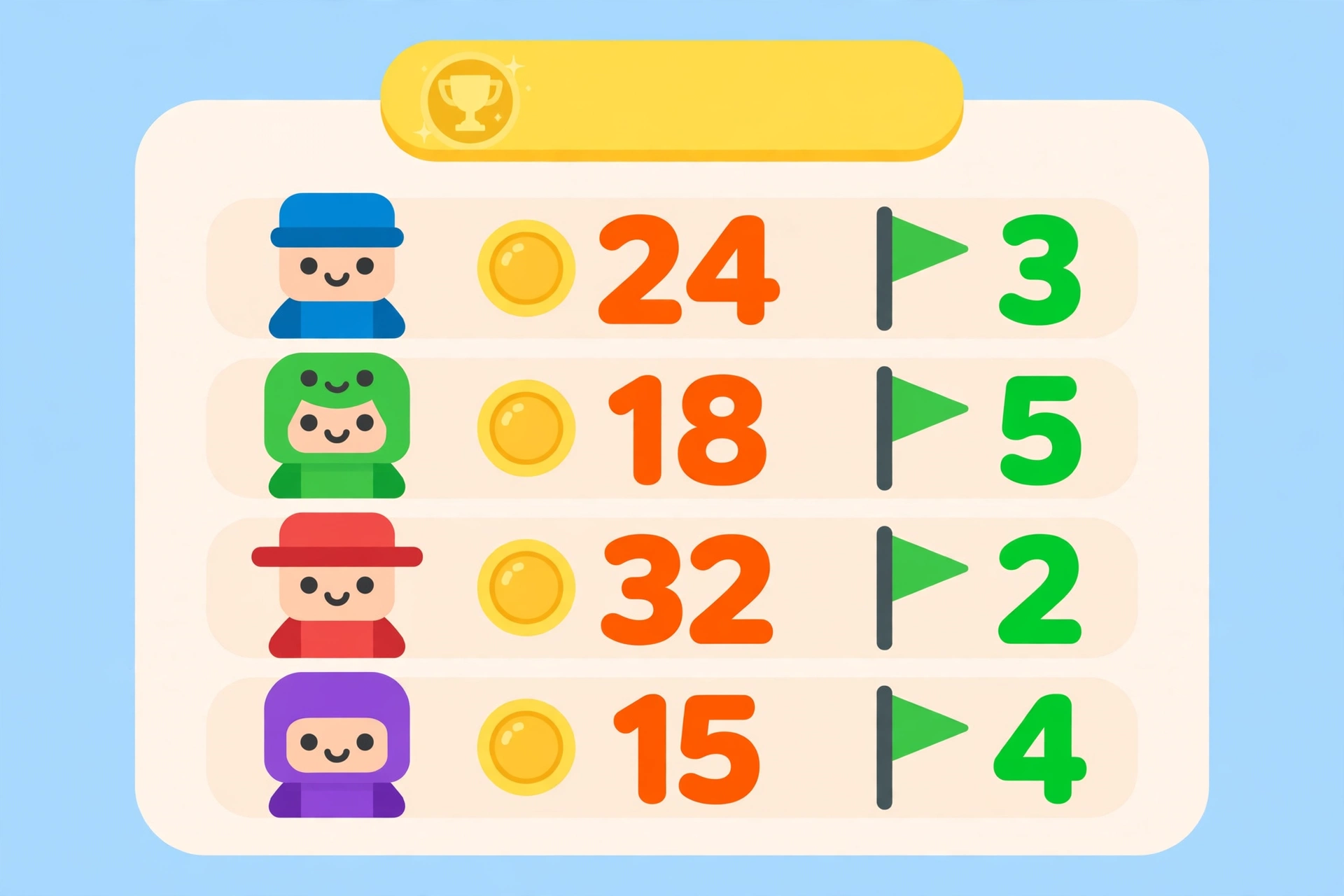
What leaderstats Actually Is How to Make a Leaderboard in Roblox Studio: The Complete Script Making the Numbers Change Example 1: A coin pickup that adds 10 coins Example 2: Counting kills without trusting the client Coins, Kills, Stages: Picking the Right Values Why Your Leaderboard Is Not Showing (Troubleshooting) What Comes Next: Saving the Numbers Frequently Asked Questions Does the leaderboard save my coins when I leave? Why do some players show a dash on the leaderboard? Can I hide the leaderboard or change how it looks? Should I use IntValue or NumberValue? Can a LocalScript update the leaderboard? Related Guides on RBXMods SourcesOpen almost any Roblox game and look at the top-right of the screen: a list of players, each with a number next to their name — coins, kills, stage, level. That list is called the leaderboard, and new creators often assume it is a built-in setting you switch on. It is not. Roblox shows a leaderboard automatically only when your game creates a folder with one very specific name. Get that name right, and the scoreboard appears by itself. Get it wrong, and nothing shows up no matter how good your script is.
This guide explains what leaderstats actually is, gives you a complete working script you can paste in, shows how to make coins and stages update on it in real time, and covers the mistakes that make leaderboards silently fail. You need only basic scripting: if you can follow a first script, you can follow this one. Our Lua scripting guide for beginners is the right starting point if variables and functions are still new to you.
Key takeaways
- The leaderboard appears automatically when a player has a folder named exactly leaderstats (all lowercase, one word).
- Create that folder with a server Script in ServerScriptService — a LocalScript cannot create a leaderboard other players can see.
- Put IntValue or NumberValue objects inside the folder; plain variables never appear on the board.
- Other scripts update the board by changing those values — never let the client decide its own score.
What leaderstats Actually Is
When a player joins your game, Roblox checks whether that player has a folder inside them called exactly leaderstats (all lowercase, one word). If it finds one, it displays the values inside that folder on the leaderboard. That is the whole mechanism — there is no leaderboard object to insert and no setting in Game Settings.
Three rules follow from this:
- The folder must be named exactly
leaderstats. "Leaderstats", "LeaderStats" or "leaderStats" will not work — Roblox only recognises the exact lowercase spelling. - It must be created by a server Script, not a LocalScript. A LocalScript only changes things on one player's own device, so the server — and every other player — never sees it. Leaderboards are game-wide, so they belong on the server.
- The values inside it must be Value objects — usually
IntValuefor whole numbers like coins or stages, orNumberValueif you need decimals. A plain number stored in a variable is invisible to the leaderboard; only an object in the folder shows up.
One more thing beginners miss: the board usually lists values in the order they were added to the folder, left to right. Create Coins first and Stage second, and Coins normally appears first — so create them in the order you want players to read them.
How to Make a Leaderboard in Roblox Studio: The Complete Script
Create a Script in ServerScriptService (hover over it in the Explorer, click +, choose Script) and paste this in:
local Players = game:GetService("Players")

local function onPlayerAdded(player)
    -- Safety net: never build a second folder for a player who already has one.
    if player:FindFirstChild("leaderstats") then return end
    local leaderstats = Instance.new("Folder")
    leaderstats.Name = "leaderstats"
    leaderstats.Parent = player

    local coins = Instance.new("IntValue")
    coins.Name = "Coins"
    coins.Value = 0
    coins.Parent = leaderstats

    local stage = Instance.new("IntValue")
    stage.Name = "Stage"
    stage.Value = 1
    stage.Parent = leaderstats
end

Players.PlayerAdded:Connect(onPlayerAdded)

-- Players already in the game when this script starts never trigger PlayerAdded, so run onPlayerAdded for them too.
for _, player in Players:GetPlayers() do
    onPlayerAdded(player)
end
Playtest now (press F5 in Studio). Your character joins, the script runs, and the leaderboard appears with Coins 0 and Stage 1. No other step is needed — if it does not appear, the name is misspelled or the script is in the wrong place, which the troubleshooting section below covers.
Note the first line: game:GetService("Players") is the safe way to reach the Players service. The PlayerAdded event fires once per player, at the moment they join, which is exactly when their leaderboard folder needs to exist. If your game only needs one stat, delete the other IntValue block; if it needs a third, add it in the reading order you want, before the end of the function.

Making the Numbers Change
A leaderboard that never moves is decoration. The values change when other scripts change them — and the key is that every script must find the same folder the same way:
local leaderstats = player:WaitForChild("leaderstats")
local coins = leaderstats:WaitForChild("Coins")
coins.Value = coins.Value + 10
WaitForChild matters. Without it, a script that runs at the same moment as the player joins may look for the folder before it exists and error out. With it, the script simply waits until the folder is there. Never write player.leaderstats.Coins.Value directly in a script that can run before the folder exists; that is one of the commonest silent leaderboard errors, and the Output window will flag the missing folder.
Example 1: A coin pickup that adds 10 coins
Put a Script inside a coin part, and use its Touched event to find which player touched it, add 10 to their Coins, and remove the coin. Because a touch can fire several times as a character brushes past a part, this version uses a small debounce so one coin cannot pay out twice:
local part = script.Parent
local Players = game:GetService("Players")
local taken = false

part.Touched:Connect(function(hit)
    if taken then return end
    local player = Players:GetPlayerFromCharacter(hit.Parent)
    if player then
        taken = true
        local coins = player:WaitForChild("leaderstats"):WaitForChild("Coins")
        coins.Value = coins.Value + 10
        part:Destroy()
    end
end)
The same pattern works for stages: when a player touches a checkpoint pad, set their Stage value to that checkpoint's number instead of adding to it. The leaderboard updates instantly for everyone, because the value object itself changed on the server. That checkpoint idea is also the backbone of our first obby guide, where Stage is the number players actually care about.
Example 2: Counting kills without trusting the client
For a combat game, do not let a player's own device report its kills — that is an open invitation to cheating, since an exploiter controls their own client. Count on the server instead: when your server-side damage or elimination logic decides a player was defeated, find the attacker's leaderstats on the server and add one to Kills there. The rule is simple and it generalises: scores are decided by the server, displayed by the leaderboard, and never accepted from a LocalScript or a RemoteEvent that carries a score the client chose. Our RemoteEvents guide explains the same boundary in detail — the client may ask, but the server validates before anything changes.
Coins, Kills, Stages: Picking the Right Values
Beginners often put five or six stats on the leaderboard. Keep it to two or three for readability — the board is narrow, and a long row of numbers is hard to read at a glance. Pick the two or three numbers that actually define progress in your game:
- Obby: Stage only. Maybe Wins as a second value.
- Simulator / tycoon: Coins (or Cash) and, if levels matter, Level.
- Combat game: Kills and Deaths — or KOs if your game uses that word.
Use the words players already expect: "Coins" beats "CurrencyUnits", and "Stage" beats "CurrentCheckpointIndex". Never show a value that never changes during a session — a static number on a live scoreboard just looks broken.

Why Your Leaderboard Is Not Showing (Troubleshooting)
Almost every leaderboard problem is one of these five:
- Wrong folder name. Check the spelling character by character:
leaderstats, all lowercase. This is the single most common cause. - Script in the wrong place. The setup script must be a server Script in ServerScriptService (or Workspace). A LocalScript in StarterPlayerScripts will not create a leaderboard anyone else can see.
- Testing with an old play session. Players who joined before you added the script do not get a folder. Stop the test and start a fresh one.
- Two scripts creating leaderstats. If two scripts both make a folder, you get duplicates or a fight over the name. Keep exactly one setup script.
- Changing a variable instead of the value. If your coin script does
coins = coins + 10on a plain number, the leaderboard never moves. Always changecoins.Valueon the IntValue object.
Two more symptoms are worth knowing. If some players show a dash, they have no value with that name — usually because they joined before the script existed. If a number updates for you but not for others, the change is happening on a client somewhere; move it to a server Script. When in doubt, check the Output window — our script errors guide shows how to read it.
What Comes Next: Saving the Numbers
Once the leaderboard works, the natural next step is making those numbers survive between sessions — that is what DataStores do, and it uses the exact same leaderstats folder as its starting point. A leaderboard on its own resets when the player leaves; paired with a save script, Coins and Stage follow the player from session to session. Build the leaderboard first, test it with friends, and only then add saving — debugging two systems at once is how beginners end up unsure which one is broken. Our DataStore guide walks through that second step, including why saving must also happen on the server and why Studio testing needs API access enabled.
That is the whole system: one folder, one name, one server script, and value objects that other scripts update. There is nothing else to install, buy, or enable.
Frequently Asked Questions
Does the leaderboard save my coins when I leave?
No, not on its own. leaderstats only displays values while a player is in the game. To keep coins or stages between sessions, you need a DataStore save script that reads the same leaderstats values when the player leaves and loads them back when they rejoin.
Why do some players show a dash on the leaderboard?
A dash means that player has no value with that name. The usual causes are joining before the setup script existed, or two scripts creating different stat names. Start a fresh playtest with one setup script and the dashes go away.
Can I hide the leaderboard or change how it looks?
Yes, you can hide it: from a LocalScript, call game:GetService("StarterGui"):SetCoreGuiEnabled(Enum.CoreGuiType.PlayerList, false) and the whole player list disappears. What you cannot do is restyle the built-in board itself — you control which values appear and in what order, not its colours or layout. A fully custom scoreboard would be a separate ScreenGui project.
Should I use IntValue or NumberValue?
Use IntValue for whole numbers like coins, kills and stages. Use NumberValue only when you genuinely need decimals, such as a timer or a fractional score — and remember that decimals on a narrow board are harder to read at a glance.
Can a LocalScript update the leaderboard?
No — and that is a security feature, not a limitation. A LocalScript runs on one player's device, so the server and other players never see its changes. Keep all score changes in server Scripts, and validate anything a client sends before trusting it.
Related Guides on RBXMods
- Lua scripting for beginners — variables, functions and events, the three ideas this script uses.
- How to make your first obby — Stage values in action, with checkpoints that set the leaderboard number.
- DataStore explained — make Coins and Stage survive between sessions.
- RemoteEvents and RemoteFunctions — why the server, not the client, must decide scores.
RBXMods is not affiliated with or endorsed by Roblox Corporation. Roblox and the Roblox logo are trademarks of Roblox Corporation.
Sources
- Roblox Creator Documentation: Overview — the official documentation hub for building and scripting on Roblox.
- Roblox Creator Documentation: Players — the Players service, including the PlayerAdded event and GetPlayerFromCharacter used in this guide.
- Roblox Creator Documentation: StarterGui — the StarterGui service, including SetCoreGuiEnabled for hiding the built-in player list.
- Roblox Creator Documentation: IntValue — the IntValue object type used for whole-number leaderboard stats.