Roblox Avatar Backgrounds Explained: Buy, Create and Sell
Roblox Avatar Backgrounds are now open to all eligible creators: scenes that sit behind your avatar on profile and avatar pages. Here is how to buy one, how to upload and sell your own, and what it costs.

In this guide
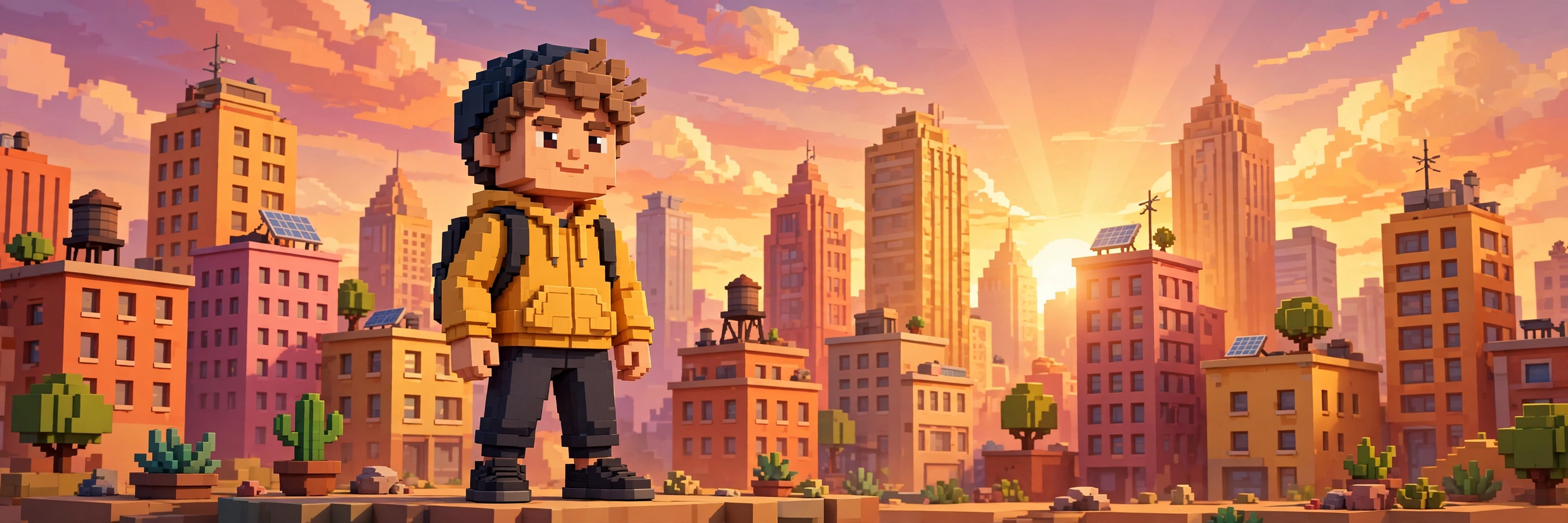
What Are Roblox Avatar Backgrounds (Profile Backgrounds)? How to Buy and Equip a Background How to Create and Sell Your Own Background Designing a Background That Sells The Money Side: Fees, Limits and Expectations Mistakes to Avoid Frequently Asked Questions What are Roblox Avatar Backgrounds? Do I need Roblox Plus to buy a background? What size does a background image need to be? How much does it cost to upload a background? How do I upload an Avatar Background? Can groups upload Avatar Backgrounds? Can I sell a Limited background? Why was my background rejected? Related Guides on RBXMods SourcesYour Roblox avatar stood against the same plain backdrop for years. Backgrounds arrived for players in July 2026, went to a creator pilot in August, and on November 5, 2026, Roblox opened Avatar Backgrounds — also called profile backgrounds — to all eligible Marketplace creators, turning the scene behind an avatar into something players can buy and creators can sell. A background is a 2560×1440 image behind your avatar on profile and avatar surfaces — a sunset city, a neon arcade, a quiet forest — and a Marketplace item like any other: creators upload it, players buy it. This guide covers both sides: how to buy and equip a background as a player, and how to create and sell one as a creator.
Key takeaways
- Roblox Avatar Backgrounds opened to all eligible creators on November 5, 2026 — after a July player launch and an August creator pilot. They are Marketplace items that put a scene behind your avatar on profile and avatar surfaces.
- Anyone can buy and wear a background — no Roblox Plus needed. Prices generally start around 200 Robux.
- To upload and sell your own, you need ID verification and an active Roblox Plus subscription — your own government ID, or a linked parental account with government ID verification; uploads are reviewed before they go on sale.
- Upload specs are strict: exactly 2560×1440, JPG, PNG, TGA or BMP, no alpha channel, sRGB colour — plus a 200 Robux upload fee and a limit of 1 background per day at launch.
- The minimum sale price is 200 Robux; keep the main subject in the centre safe area, and the floor beneath the avatar — which stands in the lower centre — clear.
- Publishing also needs a 2,000 Robux refundable advance (15,000 Robux for a paid Limited), paid back from your sales over time.
What Are Roblox Avatar Backgrounds (Profile Backgrounds)?
An Avatar Background is a Marketplace item that replaces the plain backdrop behind your avatar with a scene you choose. It shows on your profile and avatar pages — the places other players actually look at your avatar — so it is closer to a profile banner than to a piece of clothing. The avatar itself does not change; the world behind it does.
The idea is not brand new: Roblox gave Plus subscribers an exclusive set of free backgrounds in July 2026, when backgrounds first launched for players, and ran a creator pilot in August. What changed on November 5, 2026 is who can make them: the full release opened uploads to all eligible Marketplace creators, making backgrounds a new product line alongside classic clothing, accessories and UGC items.
One detail matters most: a background is not a flat picture. Roblox renders it as a 3D cyclorama — a curved backdrop the avatar stands inside — while web profiles show a flatter crop. A design that works in both views is composed for depth, not just as a rectangle.
How to Buy and Equip a Background
Buying a background works like buying any other avatar item, and you do not need Roblox Plus for it — the subscription is only required for uploading and selling.
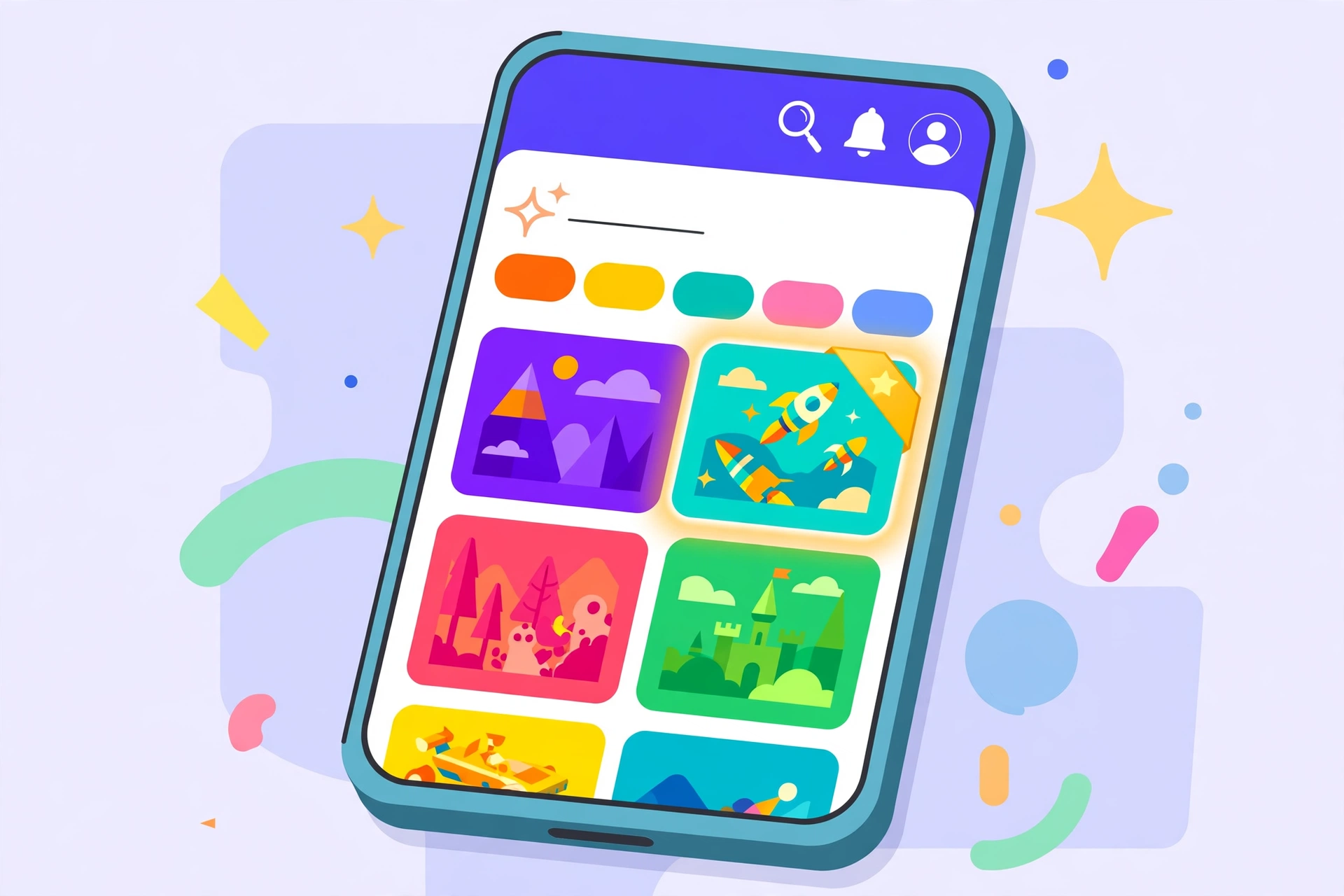
- Head to the Marketplace on the website or in the app — the Avatar Shop, where avatar items live.
- Browse the Background category, or search "background". Expect prices from 200 Robux up — 200 is the lowest price a creator can set.
- Preview it with your avatar in place. The avatar stands in the lower centre, so the subject should sit in the centre safe area above it, with a clear floor underneath. If the middle looks busy and the floor looks cluttered, the design fights the avatar instead of framing it.
- Buy it and put it on from your inventory or avatar editor — equipping works the same as any other avatar item, and it applies immediately.
- Plus members: look in your inventory first. Roblox added a free exclusive set for subscribers in July 2026, so check what you already own before paying for a lookalike.
Equipping one has no trick: backgrounds are a normal Marketplace purchase, and the scams are the normal ones. A background only ever comes from an official listing — the Marketplace, or an in-experience listing inside a game. Anyone offering a "free background" for your password, or asking for Robux through a chat message or an outside link, is running the usual new-item scam. If the offer does not happen inside an official listing, it is not a background sale.
How to Create and Sell Your Own Background
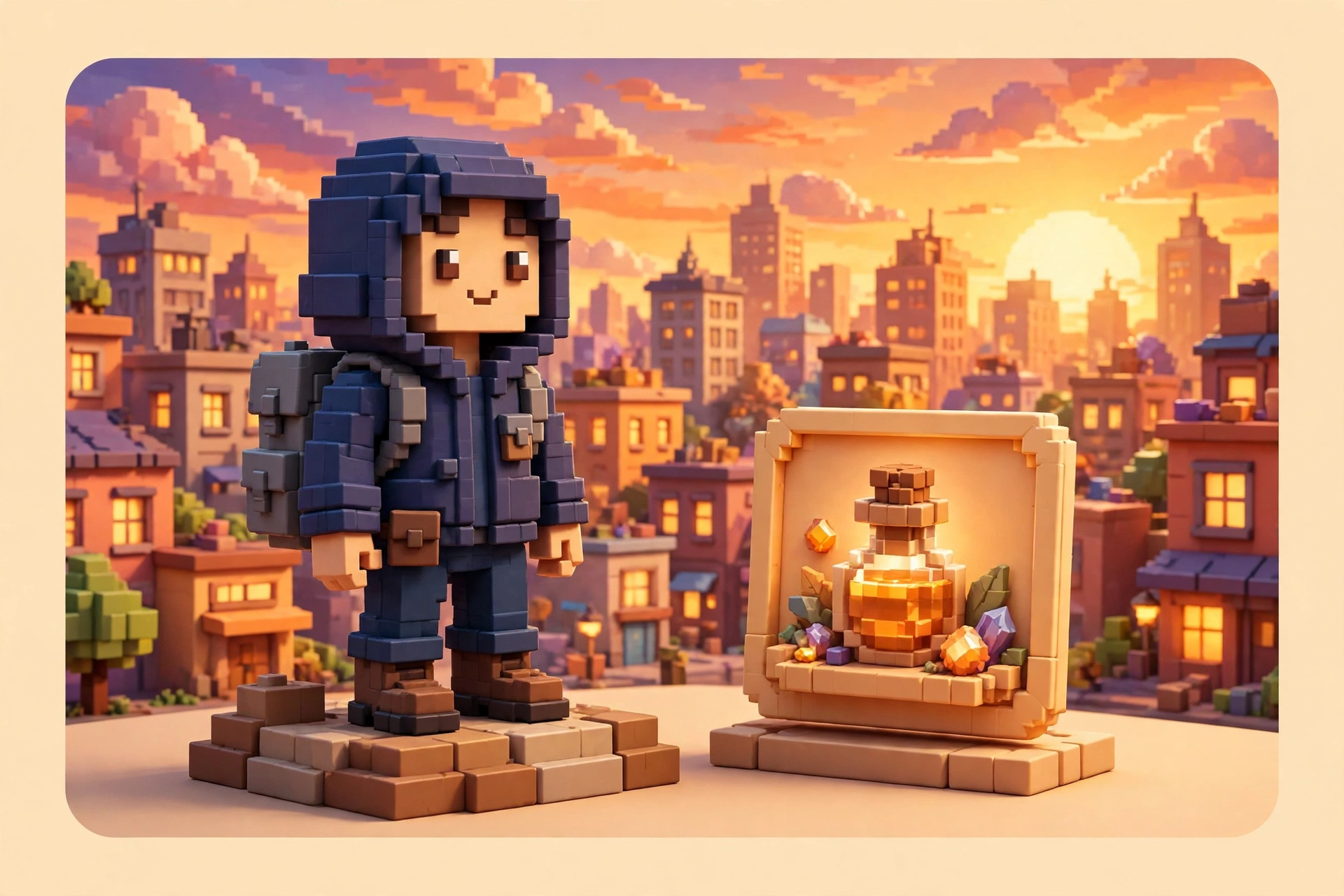
Uploading is a Plus benefit. Two requirements must both be met before the upload button works.
First, the eligibility. You must have completed Roblox's official ID verification — your own government ID, or a linked parental account with government ID verification — and hold an active Roblox Plus subscription. Groups can upload too, under the same rules, with the group owner holding the subscription; if either requirement is missing, the upload path is not available. Roblox's general Marketplace policy also accepts an existing Premium 1000/2200 membership for publishing and keeping items on sale. Our Roblox Plus guide explains the subscription — the $4.99-a-month plan that replaced Premium for new subscribers, with the upload right as one of its creator benefits.
Second, the file. The specs are strict, and upload validation enforces them:
| Requirement | What Roblox asks for |
|---|---|
| Resolution | Exactly 2560 × 1440 pixels |
| File format | JPG, PNG, TGA or BMP |
| Transparency | No alpha channel — flattened RGB only |
| Colour | sRGB |
| File size | 20 MB or smaller |
| Content | No placeholder or empty backgrounds; keep the main subject in the centre safe area |
Third, the upload itself. The path is Creator Dashboard > Create > Avatar Item > Background. Upload the file and pass validation first — a file that fails validation costs nothing; fix it and re-upload. Then add a title and description, and create the item — that step charges the 200 Robux upload fee. The background is then reviewed before it is published, so it does not go on sale instantly. At launch the limit is 1 background per day.
Fourth, the price. The minimum sale price is 200 Robux, and you can set it higher. Limiteds can be sold too, so a scarce design can be priced like other Limited avatar items — though a paid Limited needs a 15,000 Robux publishing advance instead of 2,000. The 200 Robux upload fee is charged whether or not the item sells, and the advance is paid at publishing, so the maths starts before the first sale: pick your strongest design first, not your tenth.
Designing a Background That Sells
A background has one job: make an avatar look good in front of it. The designs that do that share a few habits.
Design for the 3D cyclorama, not the flat thumbnail. The web profile shows a flatter crop, but the background is experienced as a curved scene behind the avatar. A landscape with depth — a horizon, a receding street, a layered skyline — travels between both views better than a flat pattern or a poster-style image.
Compose for the template zones. Roblox's docs divide the frame into zones, and the most common beginner mistake is designing against them:
| Zone | Where | Rule |
|---|---|---|
| Safe area | Centre of the image, including the horizon | Put important content here — it stays visible on every surface |
| Avatar location | Lower centre | The avatar stands here; keep the floor under it clear |
| Transparent area | Outer edge | The edge fade lives here; keep important details out |
| Distortion area | Foreground floor | Floor texture stretches here — gradients and ground texture only, no important content |
| Horizon line | Boundary between sky and floor | Keep tall objects from crossing it, or they clip behind the avatar |
In short: important content goes in the centre, tall elements frame the edges, and the floor stays simple. A background whose best detail sits in the distortion area or the outer edge reads as an empty background on some surfaces.
Let Roblox do the fading. Roblox already applies an edge fade — do not add your own. Export flattened RGB, or as JPG, and the fade takes care of itself.
Design for the buyer, not the portfolio. The buyer chooses from a grid of thumbnails. Bold, readable scenes — a neon street, a sunset beach, a dark stage with a spotlight — read at thumbnail size; a subtle, low-contrast image that looks refined at full size disappears in the grid. Test your design at thumbnail size: if you cannot tell what it is at 200 pixels wide, neither can a buyer.
Respect the review. Every background is reviewed before publishing under the Community Standards and Marketplace Policy. Placeholder images, empty backgrounds and anything that breaks those rules will not go on sale — and if moderation rejects the item after creation, the 200 Robux upload fee is not refunded. Submit finished work, not a test image.
The Money Side: Fees, Limits and Expectations
Backgrounds are a small product line with small numbers, and the honest way to judge them is as a side income, not a main one. The costs are fixed — and the publishing advance is the one creators miss:
| Cost | Amount | Notes |
|---|---|---|
| Upload fee | 200 Robux | Charged when the item is created, after validation; not refunded if moderation rejects it |
| Publishing advance (standard) | 2,000 Robux | Refundable upfront fee paid at publishing; paid back from your sales over time |
| Publishing advance (paid Limited) | 15,000 Robux | Same refundable mechanism, for Limited backgrounds |
| Creator share at the floor | 30% (60 Robux per 200-Robux sale) | The share rises with price, up to 70%; sales sit in a 30-day escrow hold |
At the 200 Robux floor, four sales cover the upload fee alone — and the 2,000 Robux advance is only paid back gradually from later sales, through rebates Roblox processes daily. Read Roblox's fees page before pricing anything: the share you keep climbs steeply as you price above the floor.
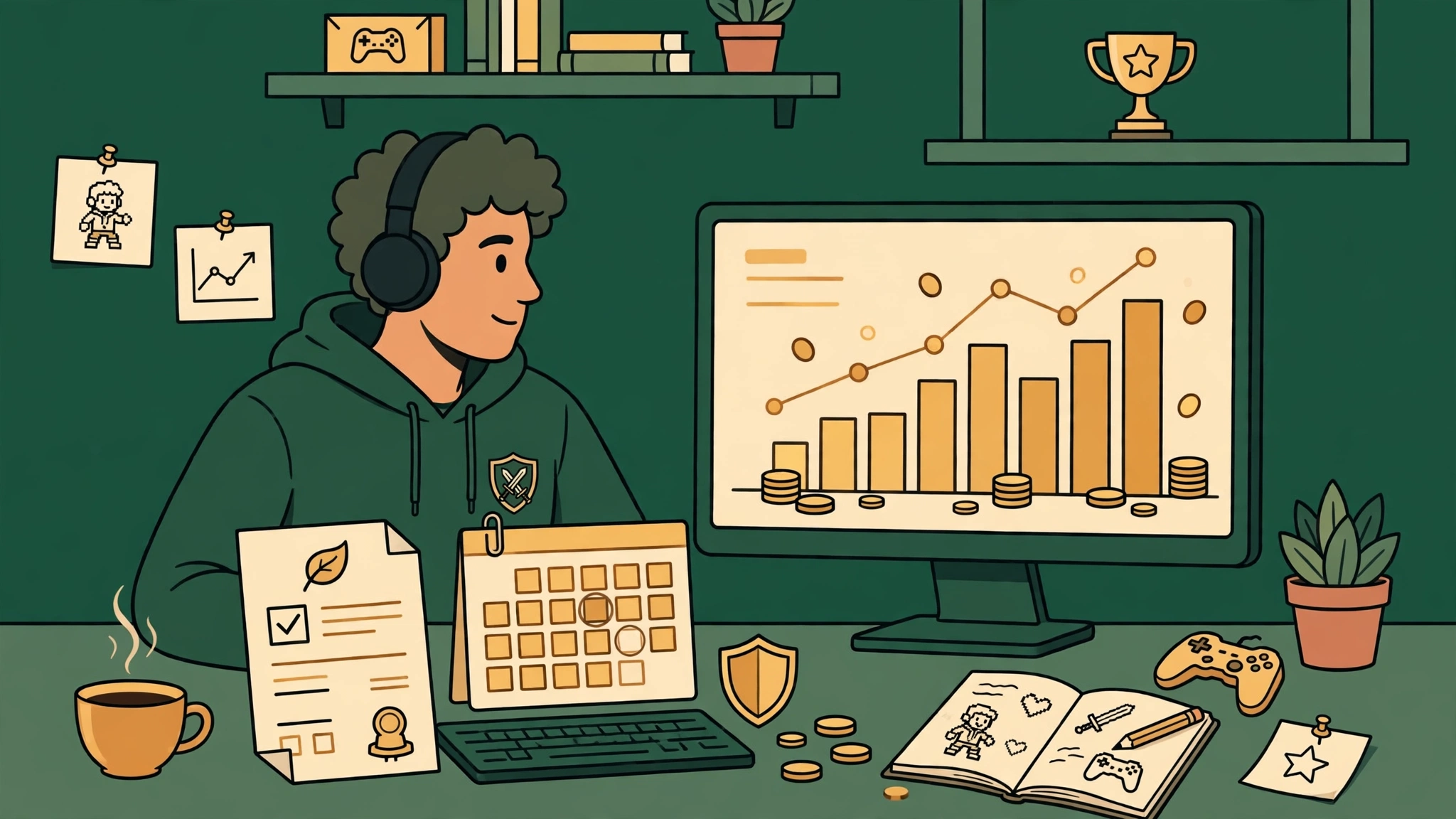
The volume question is open. Backgrounds are new, the catalogue is small, and the one-a-day limit keeps it that way. A creator with a distinctive style — the same people already selling classic clothing or UGC accessories — has the best shot, because their buyers already browse their catalogue. A creator starting from zero competes on the search page, where discovery rewards designs that read well at thumbnail size.
Set expectations accordingly. Price above the floor when the design earns it, upload your best work first, and treat the first few backgrounds as an experiment: watch which ones sell, which get favourited, and what buyers' avatars look like in front of them. The creators who learn fastest from the first uploads are the ones still uploading as the catalogue grows.
Mistakes to Avoid
- Trying to upload without Plus or ID verification. The upload path requires both, and the only upload path Roblox gives is the Creator Dashboard. Anyone offering to upload for you another way is either mistaken or running a scam.
- Exporting a PNG with a hidden alpha channel. Many art tools add an alpha channel even to opaque images — turn it off in the export settings, flatten to RGB, or export as JPG. A file that fails validation costs nothing; fix it and re-upload.
- Adding your own edge fade or transparency. Roblox already fades the edges. Your own fade doubles the effect and washes the scene out.
- Putting important detail in the floor or the outer edge. The floor distorts and the edge fades — detail placed there vanishes on some surfaces. Important content belongs in the centre safe area, with a clear floor under the avatar.
- Uploading a placeholder to "test the flow". Placeholder and empty backgrounds are rejected, and the 200 Robux upload fee — charged when you create the item — is not refunded after a moderation rejection. Test the design in your own editor, not in the review queue.
- Buying from outside an official listing. Backgrounds are sold through the Marketplace or in-experience listings — never through a chat message or an outside link. Paying Robux to another player for a background you have not seen in an official listing is how accounts get drained.
- Pricing everything at the 200 Robux floor. The floor is a minimum, not a target. At the floor you keep 30% — 60 Robux a sale — while the share rises to 70% at higher prices, so a strong design priced above the floor earns far more per sale and signals quality.
Frequently Asked Questions
What are Roblox Avatar Backgrounds?
A scene image that sits behind your avatar on your profile page and in the 3D avatar viewer. Players buy them on the Marketplace; creators with Plus and ID verification can upload and sell their own.
Do I need Roblox Plus to buy a background?
No. Buying and wearing one needs no subscription — anyone can buy from the Marketplace, with prices starting at 200 Robux. The Plus subscription and ID verification are only needed to upload and sell.
What size does a background image need to be?
Your file must be exactly 2560×1440 pixels, no larger than 20 MB, in JPG, PNG, TGA or BMP, exported as flattened RGB in sRGB with no alpha channel. Leave the edge fade to Roblox — do not add your own.
How much does it cost to upload a background?
Creating the item charges a 200 Robux upload fee, and publishing needs a 2,000 Robux refundable advance (15,000 Robux for a paid Limited). The lowest price you can set is 200 Robux, and uploads are limited to 1 per day at launch.
How do I upload an Avatar Background?
In the Creator Dashboard, open Create > Avatar Item > Background and upload your file. Once it passes validation, add a title and description, create the item to pay the upload fee, and wait for review before it goes on sale.
Can groups upload Avatar Backgrounds?
Yes — group uploads are supported, under the same requirements: ID verification (your own government ID, or a linked parental account with government ID verification) and an active Roblox Plus subscription held by the group owner.
Can I sell a Limited background?
Yes — all publishing options are available for backgrounds, including Limited. A paid Limited needs a 15,000 Robux publishing advance instead of the standard 2,000.
Why was my background rejected?
The usual reasons are a hidden alpha channel in the file, placeholder or empty content, or content that breaks the Community Standards or Marketplace Policy. A file that fails validation costs nothing — but if moderation rejects the item after creation, the upload fee is not refunded.
Related Guides on RBXMods
- Roblox Plus explained — the $4.99-a-month subscription you need to upload backgrounds, and everything else it includes for players and creators.
- How to make a shirt on Roblox — the classic-clothing upload rules: the 585×559 template, the upload fee, and the same ID-verification requirement.
- How to make a game pass on Roblox and sell it for Robux — another way to earn from your game, with pricing strategy and a testing checklist.
- Robux, DevEx and Marketplace tax explained — how Robux earnings turn into real money, and what the tax change means for creators.
- Roblox rewarded video ads for creators — a different monetisation route: paying players with in-game rewards for watching ads.
RBXMods is not affiliated with or endorsed by Roblox Corporation. Roblox and the Roblox logo are trademarks of Roblox Corporation.
Sources
Last checked against Roblox docs: November 17, 2026.
- Roblox Creator Docs: Backgrounds — the primary reference: template zones, eligibility (Plus + ID verification or linked parental account), the upload path, the 1-per-day limit, and Limited support; with the specifications page for the 2560×1440, format, sRGB, alpha and 20 MB rules. (Verified loading 2026-11-17.)
- Roblox Developer Forum: [Full Release] Create and Sell Avatar Backgrounds on Marketplace — Roblox Staff announcement, November 5, 2026: the full release, the 200 Robux fee and price floor, the 1-per-day limit, and the Plus + ID verification requirement. (Verified loading 2026-11-17.)
- Roblox Developer Forum: [Pilot] Create and Sell Avatar Backgrounds on Marketplace — Roblox Staff announcement, August 6, 2026: the creator pilot and the summer player launch. (Verified loading 2026-11-17.)
- Roblox Developer Forum: Expanding Roblox Plus — Roblox Staff announcement, July 23, 2026: backgrounds launching for players, the exclusive free set for Plus subscribers, and UGC uploads coming in August. (Verified loading 2026-11-17.)
- Roblox Creator Documentation: Marketplace fees and commissions — the 200 Robux upload fee, the 2,000/15,000 Robux publishing advances and rebates, the creator revenue share, and the no-refund rule for moderation rejections. (Verified loading 2026-11-17.)