How to Set Up Roblox Parental Controls: A Complete Guide for Parents
Roblox parental controls now run through a linked parent account, not a PIN. Here is the full setup — linking, content maturity, chat, screen time and spending — plus the honest limits.

In this guide
What Changed in 2026: the PIN Is Gone First, Understand Your Child's Account Type How to Set Up Roblox Parental Controls in 6 Steps Step 1: Create your parent account and verify you are an adult Step 2: Link your account to your child's account Step 3: Set content maturity and block specific games Step 4: Set chat and communication Step 5: Set a daily screen time limit Step 6: Set a monthly spending limit Parent Mode: the Option Without a Linked Account What Changes When Your Child Turns 13, 16 and 18 What Roblox Parental Controls Cannot Do Frequently Asked Questions Do I need my own Roblox account to set parental controls? Where did the parental PIN go? Why can't my child chat even though I allowed it? What is the difference between Roblox Kids and Roblox Select? Can my child remove the parental controls? Do spending limits cover gift cards? Related Guides on RBXMods SourcesRoblox parental controls changed more in 2025 and 2026 than in the five years before: the old four-digit Account PIN is gone, chat now requires an age check, and children under 16 sit in age-based account types that filter what they can open before you touch a setting. The good news is that the new system is genuinely capable — and free. This guide walks through the whole setup: creating your own parent account, linking it to your child, and setting content maturity, chat, screen time and spending limits — plus what changes as your child gets older and the limits to know about.
Key takeaways
- Roblox parental controls now run through a linked parent account — your own Roblox account, verified as 18 or older, linked to your child's. The old Account PIN is gone.
- From your own account you set content maturity, chat, a daily screen time limit and a monthly spending limit — you never need to sign in to your child's account to change a setting.
- Controls step down with age: screen time and spending limits end at 13, most chat and game controls end at 16, and the accounts unlink automatically at 18.
- The controls have real limits: they do not cover chat built into a game by its developer, gift-card spending, or a second account your child opens.
What Changed in 2026: the PIN Is Gone
Until recently, parents locked a child's Roblox settings behind a four-digit Account PIN set on the child's own account. Roblox has replaced that system with Roblox accounts with parent privileges: you create or use a Roblox account of your own, verify that you are an adult, and link it to your child's account. After that, every control lives under Settings > Parental Controls on your own account, on the website or in the app, and changes apply to your child's account straight away. If you set a PIN years ago, treat it as legacy — it no longer controls anything.
Two other 2026 changes sit underneath the controls: since January 7, 2026, every player must complete an age check to use chat at all, and since June 16, 2026, players under 16 sit in age-based account types — Roblox Kids for ages 5 to 8, and Roblox Select for ages 9 to 15. Our age check guide explains the check itself; this guide is about the controls you set once the account type is in place.
First, Understand Your Child's Account Type
Before you change anything, know which account your child has, because it sets the baseline the controls build on. A Roblox Kids account (ages 5 to 8) can only open games rated Minimal or Mild that have passed an extra selection process for under-16s, and chat is off by default. A Roblox Select account (ages 9 to 15) can open games rated up to Moderate from the same selected catalogue, with chat opening up gradually with age. A standard account is only for age-checked players 16 and older. The account type follows the birthday on the account and the age-check result, and Roblox moves a child up automatically at 9 and at 16 — you do not choose it yourself. One practical consequence: a game that worked last month can suddenly become unavailable on a younger child's account if it does not pass the under-16 selection process, and that is usually the account type doing its job, not a bug.
How to Set Up Roblox Parental Controls in 6 Steps
The whole setup takes about ten minutes if you have access to your email and a verification method. Do it in this order: link first, then set the four controls, because without a linked parent account you cannot set content maturity, spending, screen time or chat restrictions at all.
Step 1: Create your parent account and verify you are an adult
On your own device, create a Roblox account with your own email address — do not use your child's email. You need parent privileges, which means Roblox must confirm you are 18 or older — usually with a government-issued ID or a credit card, or a facial age estimate where offered. Complete that verification before you try to link anything, and turn on 2-step verification on your parent account while you are there. Our account safety guide covers 2-step verification and passkeys step by step.
Step 2: Link your account to your child's account
The link starts on your child's device. On the child's account, open Settings > Parental Controls, choose Add parent, and enter the email address of your parent account. Roblox emails you a link: choose Create account if you have not made one yet, or Use existing account if you have — the email on your Roblox account must match the address the invitation went to. Complete the age verification if it asks again, then choose Agree — your child confirms the connection on their side too. After that, your child's account appears in your own Settings > Parental Controls, and you manage everything from your own device from then on.
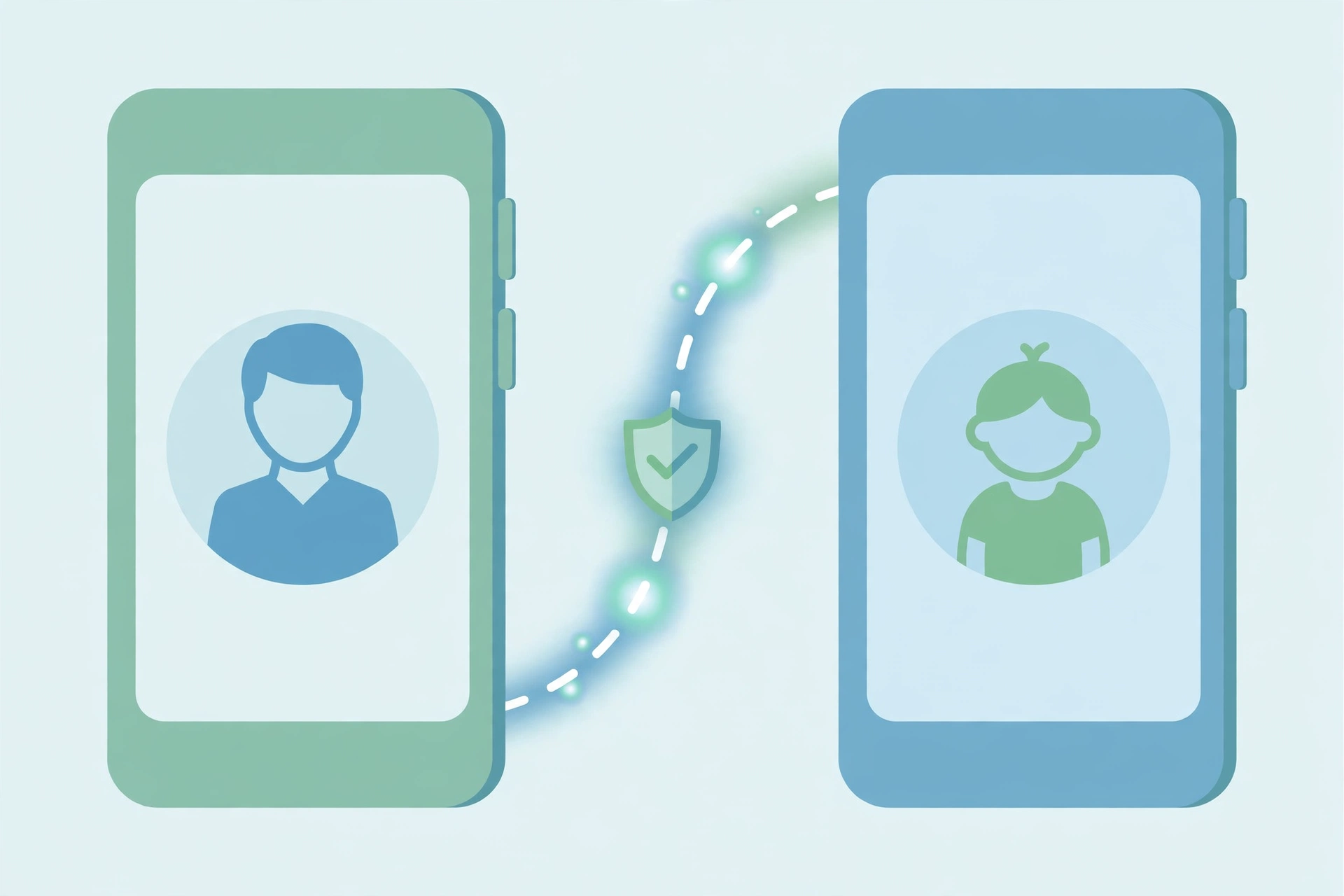
Two things to know. There is no separate parent portal — you sign in to your own Roblox account normally and open Parental Controls. And a child can unlink the account: Roblox says you then lose the ability to give permission for actions, control privacy settings, or set screen time and spending limits, so the link works best alongside a conversation with your child, not as a lock you set and forget.
Step 3: Set content maturity and block specific games
From your parent account, open Settings > Parental Controls, select your child, and go to Content restrictions. Roblox calls its age-related content setting content maturity, and it has four levels: Minimal, Mild, Moderate and Restricted. For a Roblox Kids account, Minimal is the safest default; for ages 9 to 12, Minimal or Mild is usually enough. Avoid Moderate as a broad default unless you review what your child plays, and note that Restricted content is only for age-verified players 17 and older, so it never appears for an under-16 account.
The slider alone is not the whole job. On the same screen you can block a specific game, or allow a specific game that sits outside your child's catalogue — but never a Restricted one. If your child asks for a blocked game, the request arrives by email and under Pending requests in your Parental Controls, so you can approve or refuse it from your own device. Check the setting separately from chat and time: changing one does not change the others.
Step 4: Set chat and communication
Chat is not one switch. From your parent account, open Settings > Parental Controls > Settings you manage > Communication and review each option separately: experience chat (text chat inside a game), game direct chat (private messages inside a game, usually with the /w command), friends chat, and voice chat. For a Roblox Kids account, chat starts off by default; a linked parent can allow in-game chat. Voice chat is age-gated to 13 and older and defaults to on after a child's 13th birthday, so check it again then.
Remember what the age check already decided: without a completed age check, a player cannot chat at all, whatever their age. If your child suddenly cannot chat, the cause is usually a missing or failed age check rather than a parental control — our age check guide covers the fixes.
Step 5: Set a daily screen time limit
From your parent account, open Parental Controls, pick your child, and go to Screen time and then Manage. Choose Screen time limit and pick a Daily limit — limits are offered in 15-minute steps. When the limit is reached, your child sees a message that their time is up and cannot keep playing until the next day. The same screen shows a seven-day average and the week's most-played games, so you can see whether the limit matches how much they actually play. Screen time is one of the settings that transfers to the child on their 13th birthday, so a limit you set for a 12-year-old will not follow them into their teens unless you agree on a new one together.
Step 6: Set a monthly spending limit
From your parent account, go to Parental Controls > Settings you manage > Spending restrictions > Monthly spending limit and enter an amount. The limit resets each month, and Roblox can send you spending notifications so a purchase does not surprise you. Two exceptions matter: the limit does not cover gift-card redemption — Robux bought with a gift card can still be spent — and it does not cover purchases made outside Roblox itself, such as through a console store. The spending limit also stops applying when your child turns 13, though you can keep the spending notifications.
Parent Mode: the Option Without a Linked Account
Not every family wants a linked account, and Roblox now documents a second route called Parent mode, for children without a linked parent. It works on the child's own device: when your child asks for a change, they choose Ask in Person and hand you the device. You select Continue as a parent, verify that you are an adult — a facial age check, a credit-card hold that is not charged, or a government ID with a selfie — review the child's birthday, and create a 6-digit PIN for the next time. Parent mode can approve most requests and change most settings, but it cannot do the things that need a linked account, such as sending you real-time spending alerts. Roblox says Parent mode is rolling out gradually and may not be available to everyone yet — if you do not see it, use the linked account.
What Changes When Your Child Turns 13, 16 and 18
Parental controls are not permanent, and the step-downs are the part most guides skip. At 13, Roblox hands most settings to the teenager: they set their own content maturity, screen time and spending, and the monthly spending limit stops applying — though you can keep the spending notifications. Until 16, you still manage direct chat and can allow or block individual games. From 16, you keep a view of your child's friends, screen time and spending, but you no longer set the rules. At 18, the accounts unlink automatically. Plan for the 13th birthday in particular: it is the moment the controls quietly hand over.
What Roblox Parental Controls Cannot Do
An honest guide has to say what the controls do not cover. They do not reach chat that a game developer built themselves inside their own game — Roblox's settings apply to Roblox's chat, not to a custom chat system a creator coded. They do not cover gift-card redemption, purchases outside Roblox, or anything that moves off Roblox, such as a child being asked to continue a conversation on another app. They cannot stop a determined child from opening a second, unlinked account. And they cannot show you deleted messages. None of that makes the controls useless — they are the strongest free tool Roblox offers — but they are one layer, not a replacement for knowing what your child plays, who they play with, and what they are being asked to do.
One more thing: social media links on a profile or a game page are only visible to age-checked players 16 and older, so if your teenager cannot see them, that is the age check working, not a setting you misconfigured. And if the app will not open or a game will not join, our error code guide and game-not-joining fixes cover those separately.
Frequently Asked Questions
Do I need my own Roblox account to set parental controls?
Yes. Roblox parental controls run through a linked parent account — your own Roblox account, verified as 18 or older. You cannot set content maturity, chat, screen time or spending limits from inside your child's account alone. The only exception is Parent mode, which works on the child's device for families without a linked account.
Where did the parental PIN go?
Roblox replaced the old four-digit Account PIN with accounts with parent privileges. There is no PIN in Account Settings any more; the protection now comes from your own verified account, not a code your child could learn. Parent mode uses a separate 6-digit PIN, but only for approving requests on the child's device.
Why can't my child chat even though I allowed it?
Check the age check first. Since January 7, 2026, chat requires a completed age check, and without one a player cannot chat at all, whatever their age and whatever the parental controls say. If the check is done and chat still fails, check the separate toggles for experience chat, direct chat and friends chat — they are independent settings.
What is the difference between Roblox Kids and Roblox Select?
Roblox Kids is for ages 5 to 8: only Minimal or Mild games from a selected catalogue, with chat off by default. Roblox Select is for ages 9 to 15: games rated up to Moderate from the selected catalogue, with chat opening gradually with age. Both rolled out worldwide on June 16, 2026, and a child moves between them automatically by age.
Can my child remove the parental controls?
A child can unlink a parent account, and Roblox says you then lose the ability to give permission for actions, control privacy settings, or set screen time and spending limits. That is why the controls work best alongside a conversation about what your child plays, rather than as a secret lock.
Do spending limits cover gift cards?
No. A monthly spending limit does not cover gift-card redemption or purchases made outside Roblox, such as through a console store. It limits spending of Robux bought inside Roblox. If gift cards are part of how your child gets Robux, treat them as a separate budget.
Related Guides on RBXMods
- How to verify your age on Roblox: the age check, chat rules and fixes — the age check that chat and the account types depend on.
- How to keep your Roblox account safe — 2-step verification and passkeys for your parent account.
- Roblox error codes: what each error means and how to fix it — when the problem is an error code, not a setting.
- Why your Roblox game is not joining, and how to fix lag — connection and joining problems, covered separately.
RBXMods is not affiliated with or endorsed by Roblox Corporation. Roblox and the Roblox logo are trademarks of Roblox Corporation.
This guide is for information only — Roblox changes these settings from time to time, so if a menu looks different on your device, check the official pages linked below.
Sources
- Roblox: Parental Controls — parent accounts and how parents manage content, chat, screen time and spending.
- Roblox Creator Documentation: Kids and Select — the Roblox Kids and Roblox Select account types and what each can access.
- Roblox Support: Understanding Age Checks on Roblox — what an age check is, which features require one, and the age-group access rules.
- Roblox Support: ID Verification — the step-by-step ID verification process for users 13 and older.